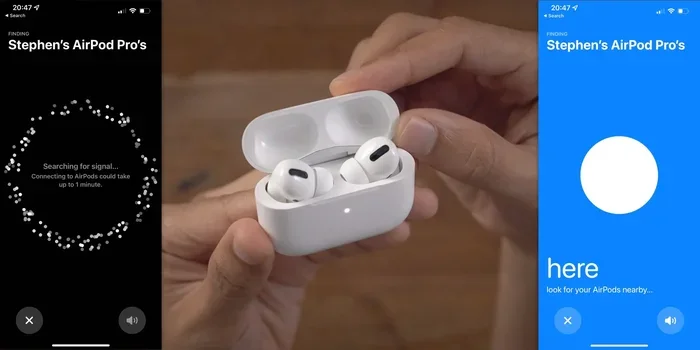
Featured image for AirPods Pro 2 Find My feature
Image source: i0.wp.com
Yes, AirPods Pro 2 have Find My functionality built right in. Apple’s second-generation AirPods Pro work seamlessly with the Find My app, allowing you to locate lost earbuds on a map, play sounds to find them nearby, and even get separation alerts. The USB-C and Lightning versions both support this feature, making it easier than ever to track down misplaced AirPods.
Key Takeaways
- Find My is Built-In: AirPods Pro 2 come with Apple’s Find My technology pre-enabled, so you can start tracking them right away.
- Map Location Tracking: You can see your AirPods Pro 2 on a map inside the Find My app to find their last known location.
- Play Sound Feature: Use the app to make your AirPods beep loudly, even if they’re hiding in your couch cushions.
- Separation Alerts: Get notified on your iPhone if you accidentally leave your AirPods behind somewhere.
- Charging Case Tracking: AirPods Pro 2 cases have their own speakers and can be tracked separately, a big upgrade from the original.
- Precision Finding: The U1 chip in newer AirPods Pro 2 cases enables ultra-precise directions to find them, like a GPS for your earbuds.
- Lost Mode Works: You can put AirPods Pro 2 in Lost Mode and leave a contact message for whoever finds them.
📑 Table of Contents
- Everything You Need to Know About AirPods Pro 2 and Find My
- What Is Find My and How Does It Work with AirPods Pro 2?
- How to Set Up Find My on Your AirPods Pro 2
- What You Can Do with Find My for AirPods Pro 2
- What Happens When Your AirPods Are Out of Range or Offline?
- Find My Limitations with AirPods Pro 2
- AirPods Pro 2 vs. Older AirPods: How Find My Compares
- Tips and Tricks for Getting the Most Out of Find My
- What to Do If You Can’t Find Your AirPods Pro 2
- The Future of Find My and AirPods
- Final Thoughts on AirPods Pro 2 and Find My
Everything You Need to Know About AirPods Pro 2 and Find My
Misplacing your earbuds is one of the most frustrating things in modern life. You pop them out for a quick conversation, set them down somewhere, and suddenly they’re gone. It’s like they have tiny legs and run away when you’re not looking!
If you just bought AirPods Pro 2 or you’re thinking about getting them, you probably want to know one thing: can you track them if they get lost? Good news, friend. The answer is a big, loud, beautiful yes.
Apple built Find My technology right into the AirPods Pro 2. This means you have a complete tracking system in your pocket. You can find your earbuds on a map, make them play sounds, and even get alerts when you forget them. It’s like having a little detective for your earbuds, always ready to help.
In this guide, we’ll walk you through how Find My works with AirPods Pro 2. We’ll cover what you can do, what you can’t do, and how to set everything up. By the end, you’ll know exactly how to never lose your precious earbuds again.
What Is Find My and How Does It Work with AirPods Pro 2?
Find My is Apple’s built-in tracking system. It started as “Find My iPhone” way back in 2010, but now it’s a whole network that helps you locate all your Apple stuff. Think of it like a neighborhood watch, but for your gadgets.
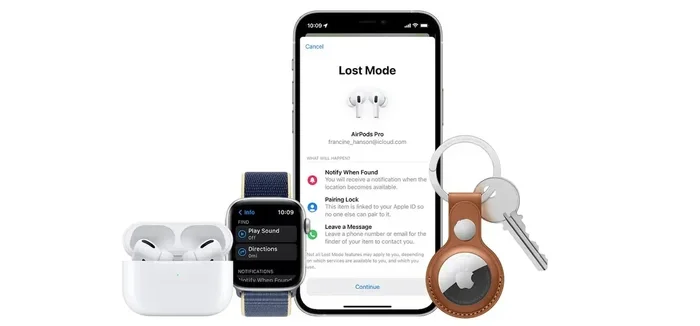
Visual guide about AirPods Pro 2 Find My feature
Image source: cdn.ithinkdiff.com
When you turn on Find My for a device, that device starts sending out a secure Bluetooth signal. Other Apple devices nearby can pick up that signal and report its location back to you. It’s completely anonymous and encrypted, so no one sees your personal info. Pretty cool, right?
The Magic Behind the Scenes
Here’s how it works in plain English. Your AirPods Pro 2 ping out a tiny Bluetooth signal, like a bat sending out echolocation. Other iPhones, iPads, and Macs floating around can pick up that signal. Those devices then send the location to Apple’s servers. When you open the Find My app, you see where your AirPods were last spotted.
This network is huge. Apple says there are hundreds of millions of Apple devices out there helping locate lost items. So even if your AirPods are hiding in a coffee shop across town, another iPhone owner walking by might help you find them.
What’s Special About AirPods Pro 2
AirPods Pro 2 are special because they have more tracking power than older AirPods. The charging case has its own speaker and a U1 chip. The U1 chip is like a tiny GPS arrow that points exactly where your case is hiding. Even the earbuds themselves have improved tracking compared to the first generation.
Did you know that Apple sold over 200 million AirPods in 2023 alone? With that many earbuds floating around, the Find My network is stronger than ever. Your AirPods Pro 2 are basically riding a wave of Apple devices everywhere they go.
How to Set Up Find My on Your AirPods Pro 2
Here’s the best part. You probably don’t need to set up anything. Find My turns on automatically when you pair your AirPods Pro 2 with your iPhone. It’s like getting a free gift you didn’t even ask for.
But let’s make sure everything is working correctly. Just follow these simple steps.
Step 1: Pair Your AirPods
First, open your AirPods Pro 2 case near your iPhone. A setup animation should pop up on your screen. Tap “Connect” and follow the prompts. Your iPhone will ask if you want to enable Find My. Tap “Yes” or “Enable.”
That’s really it. You’re done. But if you want to double-check, move to step two.
Step 2: Verify Find My Is On
Open the Find My app on your iPhone. It’s a green app with a radar-like circle. Tap on your AirPods Pro 2 in the device list. You should see a map showing their last location. If you see this, you’re all set!
If you don’t see your AirPods, you may need to manually turn it on. Go to Settings, then Bluetooth, then tap the “i” next to your AirPods. Look for “Find My Network” and make sure it’s toggled on. It should be, but it never hurts to check.
Step 3: Enable Notifications
Want to get alerts when you leave your AirPods behind? Open Settings, then tap your Apple ID at the top. Find “Find My,” then “Find My iPhone.” Turn on “Notify When Left Behind.” Now you’ll get a ping on your phone if you walk away from your AirPods.
Pro tip: this works best when you’re at fixed locations like home or work. It learns your routines and only alerts you when you truly leave them somewhere unusual. Like the time I left my AirPods at the gym. That little notification saved me a trip back the next day.
What You Can Do with Find My for AirPods Pro 2
Now for the good stuff. What exactly can you do once Find My is set up? More than you might think!
See Them on a Map
Open the Find My app and tap on your AirPods Pro 2. You’ll see a map showing their last known location. The map uses Apple Maps, so it’s clear and easy to read. A green dot means your AirPods are online and reporting. A gray dot means they’re offline, but you’ll see their last location before they went quiet.
This is super handy when you left your AirPods somewhere but can’t remember where. Maybe at the office, maybe at a friend’s house. The map helps you retrace your steps without retracing your steps. Saves a lot of sore feet!
Play a Sound
This is the fun feature. If you know your AirPods are nearby but can’t find them, tap “Play Sound” in the Find My app. Your AirPods will start beeping loudly. It’s not a quiet little chirp either. It’s a loud, sharp sound that’s hard to miss.
The sound plays for about two minutes at full volume, then stops automatically. You can also stop it manually if you find them faster. Just keep tapping “Stop Playing Sound” until it stops.
The best part? You don’t even need to be connected to your AirPods for this to work. As long as they have battery and are within Bluetooth range, you can make them sing.
Get Directions to Them
With the U1 chip in AirPods Pro 2, you get super precise directions. It’s like playing “hot and cold” as a kid, but with actual technology. Your iPhone will point you in the exact direction of your AirPods case and tell you how far away you are.
Open the Find My app, tap your AirPods, and tap “Find.” You’ll get an arrow that points toward it. As you walk, the arrow guides you. When you’re close, your phone will vibrate and say things like “You’re getting warmer” basically. Okay, it doesn’t say that, but you get the idea.
This feature works within about 30 to 40 feet. Beyond that, the arrow gets less reliable. But it’s perfect for finding your AirPods in a messy room or under a pile of laundry.
Enable Separation Alerts
Separation alerts are like having a friend who always reminds you not to forget things. Turn this on, and your iPhone will notify you when you leave your AirPods behind.
The alert appears on your lock screen and makes a sound. You can customize it to only work at certain locations, like home or work, so it doesn’t bug you all the time. Once you set your “safe” locations, it only alerts you when you’re somewhere new.
Did you know that 1 in 4 people have lost earbuds at least once? Don’t be that person. Turn on separation alerts and stay in the safe zone.
Use Lost Mode
If your AirPods are truly lost and you can’t find them, put them in Lost Mode. Open the Find My app, tap your AirPods, then scroll down and tap “Mark as Lost.” You’ll be asked to enter a phone number and message.
If someone finds your AirPods and opens the case near an iPhone, they’ll see your custom message. Something like “Please call me at 555-1234 if found!” This makes it way more likely someone will return them to you.
Lost Mode also locks your AirPods so no one can pair them with their own device. Your AirPods stay yours until you get them back.
What Happens When Your AirPods Are Out of Range or Offline?
Here’s where things get a little tricky. Find My works by pinging nearby Apple devices. If your AirPods are out of Bluetooth range from any Apple device, they show as offline.
But don’t panic. The Find My network uses crowdsourced location data. So even if YOUR iPhone can’t see your AirPods, someone else’s iPhone might. Apple has built this network to be massive, with over a billion active Apple devices worldwide.
The Charging Case Changes Everything
AirPods Pro 2 cases have their own speaker and can be tracked separately. This is huge. With older models, you could only track the earbuds themselves. But if your earbuds are in the case, you couldn’t track the case.
Now, the case itself is trackable. So even if your earbuds are dead, as long as they’re in the case, you can find them. And the case has its own little speaker that makes noise when you tap “Play Sound.” It’s like a tiny, high-tech trail of breadcrumbs.
Battery Life Matters
Your AirPods Pro 2 need battery power to send out that tracking signal. If the battery dies completely, Find My can’t locate them in real time. You’ll only see their last known location before they powered down.
This is why Apple recommends charging your AirPods regularly. A dead AirPod is a lost AirPod, as far as Find My is concerned. Keep them charged, keep them findable.
The AirPods Pro 2 case has great battery life, offering up to 30 hours of listening time with the case. So as long as you keep them in the case when not in use, you’ll have plenty of juice for tracking.
What About Airplane Mode and Other Tricks?
Can someone hide their AirPods from Find My by putting them in airplane mode? No. AirPods don’t have an airplane mode setting. The only way to disconnect them is to factory reset them, which wipes the Find My connection. But if someone has done that, they’re not really trying to return your AirPods anyway.
Find My Limitations with AirPods Pro 2
While Find My is amazing, it’s not perfect. There are some things it can’t do. Let’s be real about the limitations so you know what to expect.
No Real-Time Tracking Like a Phone
Unlike an iPhone, AirPods don’t have GPS. They use Bluetooth and the Find My network. This means updates aren’t instant. You might see a location from 5 minutes ago, 30 minutes ago, or even longer, depending on when another Apple device last pinged them.
It’s not like watching a dot move in real time on a map. It’s more like getting snapshots. Still super useful, but not the same as tracking a phone.
Can’t Track Each Earbud Separately
You can’t track the left and right earbuds separately in Find My. They show up as one item. So if you lose just one, you still have to find both or rely on the Play Sound feature to locate the missing one.
The Play Sound feature plays sound on both earbuds. If you only have one earbud, it makes finding it easier because there’s only one to look for. But you can’t tell which one the map is showing.
Limited Range for Precision Finding
The Precision Finding feature with the U1 chip works best within 30 to 40 feet. Beyond that, it’s less accurate. So if your AirPods are in a different building or across town, you’ll rely on the map location instead of the arrow directions.
This is fine for most situations. Most people lose their AirPods at home, at work, or in their car. All places where 30 feet is plenty of range.
Doesn’t Work with Android
If you’re an Android user, Find My features for AirPods are very limited. You can see the last known location and play sound, but you won’t get the full Precision Finding experience or separation alerts. Find My really shines when paired with an iPhone.
If you switch between iPhone and Android, Find My features will only work fully when using iOS. Something to keep in mind if you have friends or family in the Android world.
AirPods Pro 2 vs. Older AirPods: How Find My Compares
Not all AirPods have the same Find My features. Let’s compare so you know what makes the Pro 2 special.
AirPods Pro 2 (Current Generation)
The AirPods Pro 2 have the most advanced Find My features. The case has a U1 chip and built-in speaker. You get Precision Finding, separation alerts, and the ability to track the case separately. This is the gold standard for AirPods tracking.
Both the Lightning and USB-C versions support these features. The USB-C version, released in 2023, has all the same tracking capabilities as the Lightning version.
AirPods Pro (First Generation)
The original AirPods Pro have basic Find My features. You can see them on a map and play a sound, but there’s no Precision Finding. The case isn’t trackable on its own. The earbuds are also harder to find when they’re out of the case.
Still useful, but not as powerful as the Pro 2 setup.
AirPods 3 and AirPods 4
AirPods 3 and the newer AirPods 4 have Find My support but with limitations. AirPods 4 with Active Noise Cancellation have a case speaker and Find My features similar to AirPods Pro 2. The base AirPods 4 don’t have ANC or the advanced Find My features.
If tracking is important to you, the AirPods Pro 2 or AirPods 4 with ANC are your best bets.
What About AirPods Max?
AirPods Max also have Find My support. You can see them on a map and play a sound. But since they’re over-ear headphones, they’re easier to lose in a different way. They’re harder to misplace in couch cushions, that’s for sure.
Tips and Tricks for Getting the Most Out of Find My
Now that you know the basics, let’s talk about pro tips. These will help you become a Find My master.
Tip 1: Name Your AirPods
Give your AirPods a custom name like “Mike’s AirPods Pro 2” instead of the default. This makes them easier to identify in the Find My app, especially if you have multiple Apple devices. You can change the name in Bluetooth settings.
Tip 2: Use a Bright Case
Consider getting a colorful case or skin for your AirPods case. This makes them easier to spot in real life. A bright orange case on a messy desk is way easier to find than a plain white one. Combine this with Find My, and you’ll almost never lose them.
Tip 3: Set Up Notifications Right Away
Don’t wait until you’ve lost your AirPods to turn on separation alerts. Set them up the moment you pair your AirPods. It’s like putting on a seatbelt before you start driving. Better safe than sorry.
Tip 4: Share with Family
Did you know you can share your AirPods’ location with family members? Open Find My, tap your AirPods, and add a person. They can help you search if your AirPods go missing. Two sets of eyes are better than one.
Tip 5: Check the Last Location Often
If you notice your AirPods are missing, check the Find My map immediately. The longer you wait, the more the location data gets stale. Check right away for the most accurate results.
Tip 6: Use the Apple Watch Too
If you have an Apple Watch, you can ping your AirPods right from your wrist. Open the Find My app on your watch, tap your AirPods, and tap the bell icon. Your watch will vibrate when you’re getting closer. It’s like having a metal detector on your wrist.
What to Do If You Can’t Find Your AirPods Pro 2
Sometimes, despite your best efforts, your AirPods just disappear. Don’t lose hope. Here’s a step-by-step plan to recover them.
Step 1: Don’t Panic
Take a deep breath. Open the Find My app and check the map. Is there a last known location? That’s your starting point.
Step 2: Retrace Your Steps
Think about where you’ve been recently. Did you take them out at the gym? At a coffee shop? At a family member’s house? Go back to those places and check with staff or family.
Step 3: Use Play Sound
If you think they’re nearby, use the Play Sound feature. Walk around slowly and listen carefully. The sound is loud, but it can be muffled if your AirPods are buried under something.
Step 4: Check Lost Mode
If you can’t find them after a thorough search, turn on Lost Mode. Add your contact info so a good Samaritan can reach you if they find them.
Step 5: Wait Patiently
If your AirPods are truly lost, the Find My network might still pick them up. Sometimes a location pops up days or even weeks later. Keep checking the app periodically.
Step 6: Consider a Replacement
If all else fails and your AirPods are gone for good, it might be time for a new pair. But before you buy, see if you have AppleCare+. Some plans cover lost AirPods for a small deductible.
The Future of Find My and AirPods
Apple keeps improving Find My with every software update. iOS 18 brought even more features, like the ability to share item locations with airlines when traveling. The future of Find My is bright.
We can probably expect even more advanced tracking in future AirPods models. Maybe built-in GPS, or longer-range tracking. Whatever comes, you can bet Apple will keep making it easier to find your stuff.
Did You Know These Fun Facts?
The Find My network has helped people locate lost items in some pretty wild places. There are stories of people finding their lost iPhones in moving trucks, on buses halfway to other cities, and even once on a cargo ship. Your AirPods Pro 2 ride on that same powerful network.
Another fun fact: Apple designed Find My to be privacy-first. When other Apple devices help locate your stuff, the whole process is encrypted end-to-end. Not even Apple knows the location of your lost items. Only you can see where they are. That’s some next-level privacy protection.
Final Thoughts on AirPods Pro 2 and Find My
So, do AirPods Pro 2 have Find My? Absolutely yes, and it’s one of the best tracking setups for any earbuds on the market today. You get map locations, sound alerts, precision finding, separation notifications, and even a trackable charging case.
If you’re worried about losing your expensive earbuds, the AirPods Pro 2 have you covered. The Find My integration gives you peace of mind that few other brands can match. It’s one more reason AirPods Pro 2 are worth the investment.
Set up your Find My features today, keep your case topped up, and you’ll rarely have to worry about lost earbuds again. And if they do go missing, you’ve got a powerful tool to help you track them down.
Happy listening, and even happier finding. Your AirPods Pro 2 are now officially findable.
Frequently Asked Questions
Do AirPods Pro 2 come with Find My already enabled?
Yes, Find My turns on automatically when you pair your AirPods Pro 2 with your iPhone. You don’t need to do anything special to enable it. Just pair them, and you’re good to go. You can verify everything is working by opening the Find My app and checking for your AirPods in the device list.
Can I track my AirPods Pro 2 case separately from the earbuds?
Yes! AirPods Pro 2 cases have a built-in speaker and can be tracked separately in the Find My app. This is a major upgrade from older AirPods models. Even if your earbuds are dead or out of battery, the case itself can be located as long as it has charge remaining.
How accurate is Find My with AirPods Pro 2?
Find My accuracy depends on a few factors. Within 30 to 40 feet, the Precision Finding feature gives you exact directions using the U1 chip. Beyond that range, accuracy decreases, and you’ll rely on the last known map location. The accuracy improves as more Apple devices pass near your AirPods.
Does Find My work if my AirPods Pro 2 are dead?
No, Find My requires battery power to work. If your AirPods and case are completely dead, they can’t send out the Bluetooth signal needed for tracking. However, you’ll still see the last known location before they powered down, which can help you retrace your steps.
Can Android users use Find My with AirPods Pro 2?
Android users have very limited Find My functionality with AirPods Pro 2. You can see the last known location and play sound through the Find My network, but you won’t get Precision Finding, separation alerts, or the full iOS experience. Find My really shines when paired with an iPhone.
What should I do if I can’t find my AirPods Pro 2 at all?
If you’ve lost your AirPods and Find My isn’t helping, try retracing your steps, checking with places you’ve recently visited, and putting your AirPods in Lost Mode. You can add contact information so anyone who finds them can reach you. If all else fails, check if your AppleCare+ plan covers lost AirPods for a replacement option.