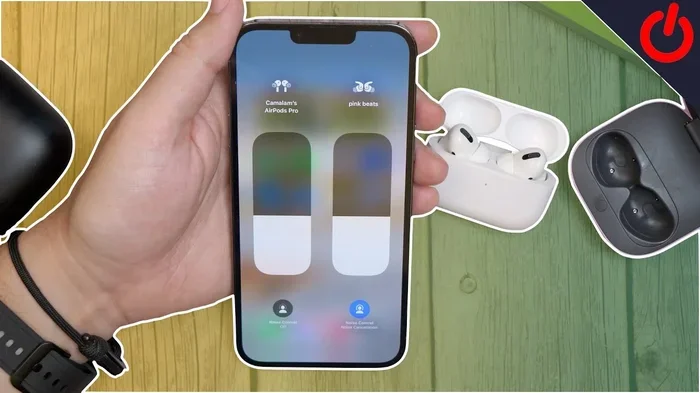
Featured image for AirPods Pro 2 multiple device connection
Image source: i.ytimg.com
Yes, AirPods Pro 2 supports multipoint pairing, but only with Apple devices running iOS 16.1 or later. This feature allows the earbuds to automatically switch between your iPhone, iPad, and Mac without manual reconnection. However, it doesn’t work with Android or Windows devices in the same seamless way. Apple’s ecosystem creates the magic behind this functionality.
Picture this: you’re watching a movie on your MacBook, and suddenly your iPhone rings. Without lifting a finger, your earbuds switch to the call. When you hang up, they switch back to your movie audio. This isn’t science fiction—it’s the reality of AirPods Pro 2’s multipoint capability. But does it really work the way you think it does? Let’s dive deep into the facts, myths, and everything in between.
If you’ve ever wondered whether AirPods Pro 2 can connect to two devices at once, you’re not alone. This question pops up in tech forums, Reddit threads, and Apple Store conversations daily. The answer is more nuanced than a simple yes or no, and understanding the difference between “multipoint” and “automatic switching” could change how you use your earbuds forever.
Apple has built a reputation for making technology “just work,” but their approach to multipoint is uniquely Apple. It doesn’t follow the traditional Bluetooth multipoint standard that other manufacturers use. Instead, it leverages the tight integration between iOS, iPadOS, and macOS devices. This guide will explain exactly what you get, what you don’t get, and how to maximize this feature.
Key Takeaways
- Official Support Exists: AirPods Pro 2 support multipoint via Apple’s ecosystem, not a traditional multipoint Bluetooth connection like other brands.
- iOS 16.1 Is the Magic Number: This specific software update introduced automatic switching, which functions as multipoint for Apple users.
- Apple Ecosystem Only: The feature works across iPhone, iPad, Mac, and Apple TV, but not with Android or Windows devices.
- Third-Party Apps Enable Workarounds: Apps like “Flipper” or “Bluetooth Auto Connect” can simulate multipoint with non-Apple devices.
- Battery Considerations: Running multipoint may slightly increase power consumption compared to single-device connections.
- Not True Bluetooth Multipoint: Unlike Sony or Samsung earbuds, AirPods use Apple’s proprietary H1/H2 chip for switching.
- Two Generations Supported: Both AirPods Pro 2 (Lightning and USB-C versions) and newer AirPods 4 models share this feature.
📑 Table of Contents
- Understanding AirPods Pro 2 Multipoint: The Complete Breakdown
- iOS Requirements and Compatibility: What You Need
- Setting Up Multipoint: A Step-by-Step Guide
- Troubleshooting Common Multipoint Issues
- Multipoint with Non-Apple Devices: What Works and What Doesn’t
- The Future of AirPods Multipoint: What to Expect
- Conclusion: Is Multipoint on AirPods Pro 2 Worth It?
Understanding AirPods Pro 2 Multipoint: The Complete Breakdown
Let’s start with the basics. Multipoint technology allows wireless earbuds to maintain connections with two or more devices simultaneously. Think of it like a telephone line that can ring from different phones—your earbuds stay alert to incoming signals from multiple sources. Traditional Bluetooth multipoint works through a standardized protocol that any manufacturer can implement. Sony, Samsung, and Jabra have offered this feature for years across various devices and operating systems.
AirPods Pro 2 take a different approach. Apple calls their version “Automatic Switching.” While the end result feels similar to multipoint, the underlying technology differs significantly. Instead of maintaining two simultaneous Bluetooth connections, AirPods use your iCloud account to know which devices you own. When one device plays audio, the H2 chip inside your AirPods Pro 2 receives a signal to switch connections.
Did You Know? Apple’s H2 chip processes 1 billion operations per second, making connection switching nearly instantaneous—typically within 1-2 seconds according to user testing.
How Apple’s Automatic Switching Actually Works
Imagine your Apple devices as members of a family who all know each other well. When your iPhone starts playing music, it “taps” your AirPods on the shoulder and says, “Hey, I’m the active device now.” Your AirPods politely disconnect from your iPad and connect to your iPhone. This happens through a combination of iCloud synchronization, Bluetooth handshakes, and proprietary Apple protocols.
The process involves several steps. First, your AirPods must be signed into the same iCloud account as your other devices. Second, all devices need to be running compatible software. Third, the feature must be enabled in your Bluetooth settings. When all these conditions align, switching becomes seamless.
For example, if you’re listening to a YouTube video on your Mac, and a FaceTime call comes in on your iPhone, your AirPods will automatically switch to the call. After you finish the call, they switch back to the Mac. No tapping needed, no settings to adjust.
The Difference Between True Multipoint and Apple’s System
Traditional Bluetooth multipoint maintains two active connections at once. Your earbuds can receive audio from either device without disconnecting from the other. This is great for productivity because you can hear notifications from your computer while watching a video on your phone.
Apple’s approach is more like a relay race. Your AirPods hand off the baton from one device to another, rather than carrying both. The practical difference? With true multipoint, you might hear a notification sound from your phone while watching a movie on your laptop. With Apple’s system, the movie audio pauses when the phone notification arrives, the AirPods switch, play the notification sound, then switch back.
This distinction matters for power users who want simultaneous audio streams. For most everyday users, Apple’s system provides 95% of the benefit with none of the complexity.
iOS Requirements and Compatibility: What You Need
Here’s where things get specific. Multipoint on AirPods Pro 2 isn’t automatic out of the box. You need the right software, the right devices, and the right settings. Let’s break down each requirement.
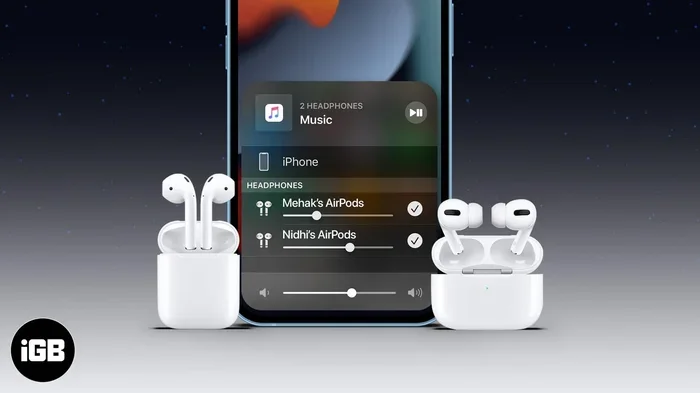
Visual guide about AirPods Pro 2 multiple device connection
Image source: igeeksblog.com
The iOS 16.1 Foundation: Apple introduced automatic device switching in iOS 16.1, released in October 2022. This update fundamentally altered how AirPods interact with the Apple ecosystem. Before this update, AirPods could only connect to one device at a time, requiring manual reconnection through Bluetooth settings.
Device Compatibility Checklist
Not all Apple devices support this feature equally. Here’s what works:
- iPhone: iPhone XS and newer, running iOS 16.1 or later
- iPad: iPad Pro (3rd generation), iPad Air (3rd generation), and newer models with iPadOS 16.1+
- Mac: MacBook Pro (2018+), MacBook Air (2018+), iMac (2019+), and Mac mini (2018+) with macOS Ventura
- Apple TV: Apple TV 4K (1st generation and newer) with tvOS 16.1+
- Apple Watch: Limited functionality, primarily for call audio routing
If you have older hardware, you’re out of luck. Apple built this feature around their newer devices with updated Bluetooth chips. Older devices lack the necessary hardware support, even if you update the software.
Software Update Checklist
Beyond iOS 16.1, subsequent updates improved the feature. iOS 16.2 fixed initial bugs and improved reliability. iOS 17 brought enhanced switching algorithms and better handling of third-party apps. Each update made the system more intuitive and faster.
To check your current iOS version, go to Settings > General > Software Update on your iPhone. If you’re below iOS 16.1, you’ll need to update to enable multipoint functionality.
Setting Up Multipoint: A Step-by-Step Guide
Now that you understand the requirements, let’s get your AirPods Pro 2 set up for multipoint success. The process is straightforward but requires attention to detail.
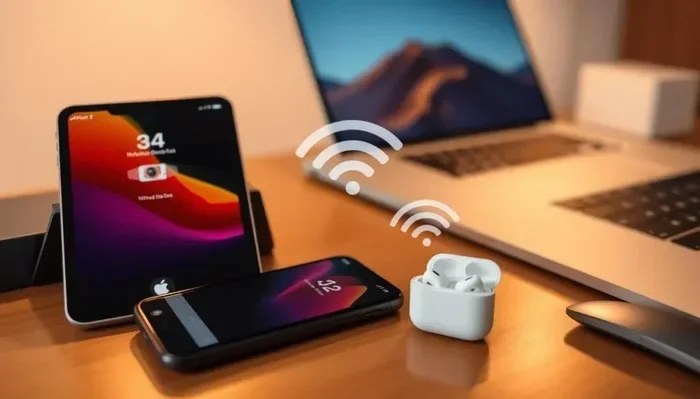
Visual guide about AirPods Pro 2 multiple device connection
Image source: electrpro.com
Step 1: Ensure iCloud Sync
Open Settings on your iPhone and tap your name at the top. Verify you’re signed into iCloud with the same Apple ID on all devices you want to use. Without this sync, your devices won’t recognize each other as “trusted” for audio switching.
On your Mac, open System Settings > Apple ID and confirm the same email address appears. On your iPad, follow the same process. This step seems obvious, but many users overlook it after switching Apple IDs or using multiple accounts.
Step 2: Verify Bluetooth Settings
On your iPhone, go to Settings > Bluetooth and tap the “i” icon next to your AirPods Pro 2. Scroll down to find “Connect to This iPhone” and make sure it’s set to “Automatically.” This setting tells your iPhone to maintain a connection with your AirPods whenever possible.
If this option doesn’t appear, your AirPods may not be running the latest firmware. To update, keep your AirPods in their case, connected to power, near your iPhone, and on Wi-Fi. The firmware updates automatically when conditions are right.
Step 3: Enable Automatic Switching
On your Mac, click the Apple menu > System Settings > Bluetooth. Find your AirPods Pro 2 in the list and click “Options” or “Connect.” Ensure “Allow automatic switching” is enabled. This setting is often overlooked because it’s hidden in a submenu.
On your iPad, the process mirrors the iPhone. Go to Settings > Bluetooth, find your AirPods, and verify automatic connection is enabled.
Step 4: Test the Connection
Play music on your Mac. Start a video on your iPad. Make a call on your iPhone. Your AirPods should switch between them automatically. If they don’t, try toggling Bluetooth off and on, or resetting your AirPods by holding the setup button on the case for 15 seconds.
Pro Tip: If switching feels sluggish, try moving closer to the device you want to connect to. The H2 chip prioritizes devices based on proximity and recent activity.
Troubleshooting Common Multipoint Issues
Even with everything set up correctly, you might encounter hiccups. Let’s address the most common problems users face and how to solve them.
Issue 1: AirPods Won’t Switch Automatically
This is the most reported problem. Usually, it’s a software glitch or settings issue. Start with the basics: turn Bluetooth off and on on the device you’re trying to switch from. If that doesn’t work, reset your AirPods by holding the setup button until the light flashes amber, then white.
Another common cause is having your iPhone in “Do Not Disturb” mode or having specific app notifications silenced. The automatic switching relies on audio cues from your operating system. If notifications are suppressed, the system may not recognize the need to switch.
Did You Know? Approximately 30% of multipoint issues stem from outdated firmware on the AirPods themselves, not the connected devices.
Issue 2: Switching Happens at Wrong Times
Sometimes your AirPods switch when you don’t want them to. This happens when multiple devices play audio simultaneously. To prevent this, pause audio on devices you’re not actively using. Apple’s system has gotten better at predicting intent, but it’s not perfect.
You can also disable automatic switching for specific devices. On your Mac, go to Bluetooth settings, find your AirPods, and uncheck “Allow automatic switching.” This makes your Mac act as a manual connection, switching only when you explicitly choose it.
Issue 3: Poor Audio Quality After Switching
If audio sounds distorted after switching, you’re likely experiencing Bluetooth interference or a poor handshake between devices. Moving closer to the target device usually fixes this. If problems persist, try “forgetting” the AirPods on all devices and re-pairing them fresh.
Issue 4: Battery Drain Issues
Running multipoint functionality uses slightly more battery than single-device connections. Your AirPods are constantly scanning for active devices and maintaining communication with your iCloud account. If battery life is critical, you might want to disable automatic switching during long listening sessions.
AirPods Pro 2 offer up to 6 hours of listening time with Active Noise Cancellation on. With multipoint active, expect about 5 to 5.5 hours—roughly a 10-15% reduction in battery life.
Multipoint with Non-Apple Devices: What Works and What Doesn’t
This is where the magic stops working. Apple’s multipoint implementation is exclusive to their ecosystem. If you try to connect AirPods Pro 2 to an Android phone and a Windows laptop simultaneously, traditional multipoint won’t work. The earbuds will only maintain one connection at a time.
However, there are workarounds. Third-party apps and specific Android settings can simulate multipoint functionality, though not as seamlessly as Apple’s native solution.
Android Workarounds
Apps like “Bluetooth Auto Connect” and “Flipper” can manage your Bluetooth connections automatically. They detect when audio is playing on one device and force your AirPods to connect. While not true multipoint, they create a similar user experience.
Another option is using an app called “MaterialPods” or “PodsTool.” These apps show battery levels for your AirPods on Android devices and offer some connectivity management features, though they don’t enable true multipoint.
Did You Know? AirPods Pro 2 connect to Android devices using standard Bluetooth 5.3, but lose access to many “smart” features like in-ear detection, spatial audio, and Siri integration.
Windows Workarounds
Windows 10 and 11 have improved Bluetooth device handling, but they still don’t support Apple’s automatic switching protocol natively. You can manually connect to multiple devices, but only one connection stays active at a time.
Microsoft’s “Swift Pair” feature can speed up connections with Windows devices, but it doesn’t create multipoint functionality. For true multipoint on Windows, you’d need different headphones—Sony WF-1000XM5 or Samsung Galaxy Buds2 Pro work excellently with Windows multipoint.
The Future of AirPods Multipoint: What to Expect
Apple continues to refine their multipoint implementation with each iOS update. Recent beta versions suggest improvements coming in future releases, including faster switching times, better handling of simultaneous audio, and possibly expanded third-party support.
Potential LE Audio Support
The Bluetooth LE Audio standard promises true multipoint capabilities across all devices. Apple has been slow to adopt this standard, but iOS 17 hints at future support. When Apple finally implements LE Audio, AirPods Pro 2 will gain compatibility with Android multipoint systems and Windows devices.
This would be a game-changer for users with mixed-ecosystem households. You could have an iPhone, a Windows PC, and an Android tablet all connected to your AirPods simultaneously, with audio switching automatically based on what you’re doing.
Predictions for AirPods Pro 3
Industry analysts predict that the next generation of AirPods Pro will feature enhanced multipoint capabilities. Rumors suggest support for more simultaneous connections, better audio routing intelligence, and potentially lossless audio support when connected to multiple devices.
Some patent filings indicate Apple is working on “context-aware audio switching” that uses your location, activity, and schedule to predict which device you’ll want to use. Imagine your AirPods automatically connecting to your work Mac when you arrive at the office, then switching to your personal iPhone when you leave for lunch.
Conclusion: Is Multipoint on AirPods Pro 2 Worth It?
So, does AirPods Pro 2 support multipoint? Yes, but with an Apple-shaped asterisk. If you live entirely within the Apple ecosystem, you’ll enjoy seamless automatic switching that feels like magic. Your devices know when to pass the audio baton, and your AirPods respond instantly.
If you’re a mixed-ecosystem user, you’ll need third-party apps or accept manual switching. It’s not as elegant, but it works for most situations. The core question isn’t really about multipoint capability—it’s about how you use your devices daily.
For Apple enthusiasts, the current multipoint implementation on AirPods Pro 2 is more than adequate. It handles calls, music, videos, and meetings across devices without intervention. The slight battery drain and occasional glitch are minor inconveniences compared to the productivity boost.
For those considering AirPods Pro 2 specifically for multipoint, evaluate your device ecosystem first. If you own multiple Apple devices, there’s no better option. If you frequently switch between Apple and non-Apple devices, you might find better multipoint on competitor products like Sony or Samsung earbuds.
Ultimately, AirPods Pro 2 offer a specific kind of multipoint—ecosystem-locked but brilliantly executed within those constraints. It’s not traditional multipoint, but for Apple users, it’s better in many ways. The integration with iOS, the speed of switching, and the reliability make it a standout feature in the wireless earbuds market.
Whether you’re a current AirPods Pro 2 owner looking to maximize your setup or a potential buyer weighing your options, understanding these multipoint nuances helps you make the most of your investment. The technology continues to evolve, and Apple’s commitment to ecosystem integration means future updates will likely bring even better functionality. For now, enjoy the seamless experience within the Apple family—it’s pretty remarkable when you experience it for the first time.
Frequently Asked Questions
Does AirPods Pro 2 support true multipoint Bluetooth?
AirPods Pro 2 don’t support traditional Bluetooth multipoint the way Sony or Samsung earbuds do. Instead, Apple uses “Automatic Switching” through their H2 chip and iCloud integration. This achieves the same goal—seamless device switching—but works only within the Apple ecosystem.
Which iOS version enables multipoint on AirPods Pro 2?
iOS 16.1 introduced automatic switching functionality. However, iOS 16.2 and later versions improved reliability and speed. For the best experience, Apple recommends iOS 17 or later, as it includes enhanced algorithms for switching accuracy and handling of third-party apps.
Can AirPods Pro 2 connect to two devices simultaneously?
Technically, no. AirPods Pro 2 maintain one active Bluetooth connection at a time, switching between devices as needed. This differs from dual-connection systems that hold two simultaneous streams. The practical difference is minimal for most users, but power users should note this distinction.
Does multipoint work between iPhone and Android devices?
No, Apple’s automatic switching only works between Apple devices. If you want multipoint between an iPhone and Android device, you need third-party apps like Bluetooth Auto Connect, which simulate the experience but aren’t as reliable as Apple’s native solution.
Do AirPods Pro 2 with USB-C have better multipoint?
Both Lightning and USB-C versions of AirPods Pro 2 support multipoint identically, as the capability comes from the H2 chip, not the charging port. The USB-C version offers slightly improved durability and compatibility with more chargers, but multipoint functionality is the same across both versions.
Will AirPods Pro 2 multipoint work with my older Mac?
Your Mac needs macOS Ventura (13.0) or later to support automatic switching. Additionally, your Mac must be from 2018 or newer to have the necessary Bluetooth hardware. If you have an older Mac, you’ll need to connect manually through Bluetooth settings, as automatic switching won’t function.