Featured image for AirPods Pro spatial audio demo
Image source: cdn.mos.cms.futurecdn.net
Yes, AirPods Pro 2 absolutely have spatial audio. This feature creates an immersive, theater-like sound experience that moves with your head. Apple’s H2 chip powers this technology, making it one of the standout features of these popular earbuds. Whether you’re watching movies, listening to music, or taking calls, it transforms how you hear everything.
Imagine sitting in a movie theater. The sound of rain comes from above you. A car zooms past from left to right. Someone whispers behind your shoulder. That’s exactly what spatial audio tries to recreate inside your earbuds. And yes, your AirPods Pro 2 can do this magical thing.
Spatial audio isn’t just a fancy buzzword. It’s a real technology that tricks your brain into thinking sound comes from different directions. Think of it like surround sound, but shrunk down and stuffed into tiny earbuds. The result? You feel like you’re inside the action, not just listening to it.
If you’ve ever wondered whether your AirPods Pro 2 support this feature, you’re in the right place. This guide breaks down everything you need to know. We’ll cover what spatial audio actually is, how it works, and how to set it up. By the end, you’ll be a spatial audio expert ready to enjoy sound like never before.
Key Takeaways
- Spatial Audio is Built-In: AirPods Pro 2 come with spatial audio support right out of the box, no extra purchase needed.
- H2 Chip Powers It: The advanced H2 processor handles all the spatial audio calculations for smooth, real-time sound positioning.
- Dynamic Head Tracking: Your sound stays anchored to your device even when you turn your head, creating a realistic 3D effect.
- Works Across Content: Spatial audio works with movies, TV shows, music, and FaceTime calls on supported apps.
- Personalized Profiles: You can scan your ears with your iPhone to create a custom spatial audio profile just for you.
- Easy to Turn On: Activation takes just a few taps in your iPhone or iPad settings menu.
- Not Just for Apple Music: Many third-party apps like Netflix and Disney+ also support spatial audio on AirPods Pro 2.
📑 Table of Contents
- What Exactly Is Spatial Audio?
- Do AirPods Pro 2 Specifically Have Spatial Audio?
- Which Devices and Apps Support Spatial Audio?
- How to Turn On Spatial Audio on AirPods Pro 2
- Spatial Audio vs. Regular Stereo: What’s the Difference?
- Tips and Tricks for the Best Spatial Audio Experience
- Common Questions About AirPods Pro 2 Spatial Audio
- The Future of Spatial Audio
- Final Thoughts
What Exactly Is Spatial Audio?
Let’s start with the basics. Spatial audio is a sound technology that creates a three-dimensional listening experience. Regular stereo sound only has two channels: left and right. Your brain hears sound coming from these two directions only. But in real life, sound comes from everywhere. It bounces off walls, comes from above, and wraps around you.
Spatial audio fixes this limitation. It places sounds in a virtual 3D space around your head. When done right, you can’t tell the difference between the virtual sound and real life. It’s like having a personal concert hall inside your head.
The Science Made Simple
Your brain is incredibly smart. It figures out where sound comes from by measuring tiny differences. It notices which ear hears a sound first. It detects how sound changes as it bounces off your head and ears. This is called “binaural audio,” and it’s been around for decades.
Here’s a simple analogy. Close your eyes and have a friend snap their fingers somewhere in the room. You can point to where the sound came from, right? Your brain does this automatically using cues from both ears. Spatial audio copies this natural process using clever math and tiny speakers in your earbuds.
The result is mind-blowing. A helicopter in a movie doesn’t just sound loud. It sounds like it’s actually flying overhead. A singer’s voice doesn’t just come from your earbuds. It feels like the performer is standing right in front of you.
Dynamic Head Tracking Explained
Now here’s where things get really cool. AirPods Pro 2 include something called “dynamic head tracking.” This means the sound stays in a fixed position even when you move your head.
Picture watching a movie on your iPad propped up on a table. The dialog comes from the screen. Now turn your head to the left. With normal earbuds, the sound stays in your ears. But with spatial audio and head tracking, the sound stays locked to the screen. Turn your head, and the audio adjusts. It’s incredibly realistic.
This happens because tiny sensors inside your AirPods detect head motion. The H2 chip processes this data instantly. Then it shifts the audio so it sounds like it’s still coming from the right place. The whole thing happens in milliseconds, so you don’t notice any delay.
Do AirPods Pro 2 Specifically Have Spatial Audio?
Yes, one hundred percent yes. AirPods Pro 2 support spatial audio as a core feature. This isn’t some hidden setting you need to unlock. It’s built right into the hardware and software from day one.
Visual guide about AirPods Pro spatial audio demo
Image source: bgr.com
Did You Know? Apple introduced spatial audio in 2020, but the AirPods Pro 2 launched in 2022 with even better implementation thanks to the H2 chip. This newer chip processes spatial audio faster and more accurately than ever before.
Both generations of AirPods Pro support spatial audio. The original AirPods Pro (1st generation) had this feature. The AirPods Pro 2 took it further with improved processing power. So whether you have the older model or the newer USB-C version, you’re covered.
What Makes AirPods Pro 2 Special for Spatial Audio
Several things make AirPods Pro 2 exceptional at spatial audio. Let’s break them down.
The H2 Chip: This is Apple’s custom-designed processor made specifically for AirPods. It handles billions of calculations per second. All this power means spatial audio works smoothly without any lag or weird artifacts. The sound positioning feels natural, not robotic.
Custom Driver: AirPods Pro 2 feature a specially designed speaker driver. This driver can reproduce sound with extreme accuracy. High frequencies sparkle. Low frequencies rumble. This accuracy is crucial for spatial audio to work properly. If the driver can’t reproduce sounds faithfully, the 3D effect falls apart.
Advanced Sensors: Inside each earbud, you’ll find accelerometers and gyroscopes. These tiny sensors detect head movement, jaw movement, and ear position. They feed this information to the H2 chip constantly. Without these sensors, dynamic head tracking wouldn’t be possible.
Computational Audio: This is Apple’s fancy term for processing sound using software algorithms. AirPods Pro 2 use computational audio to adjust sound in real-time. The audio adapts to how the earbuds fit in your ears. It even accounts for background noise. All these adjustments happen instantly while you listen.
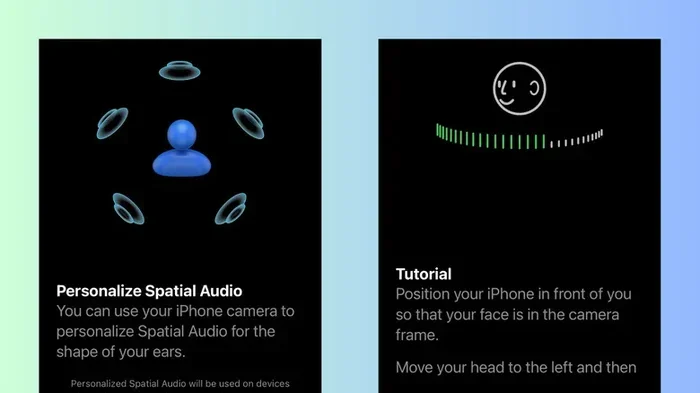
Personalized Spatial Audio: A Game Changer
In 2022, Apple introduced “Personalized Spatial Audio.” This takes the experience one step further. Instead of using a generic profile, your AirPods Pro 2 can create a custom profile based on your unique ear shape.
Here’s how it works. You use your iPhone’s TrueDepth camera to scan your face and ears. The phone creates a 3D map of your head and ear shape. This data gets sent to your AirPods. The H2 chip then adjusts the spatial audio to match your specific anatomy.
Why does this matter? Everyone’s ears are different. The shape of your outer ear affects how sound waves bounce around before reaching your eardrum. By accounting for your personal ear shape, spatial audio sounds more accurate. It’s like getting a custom-tailored suit versus buying one off the rack.
Setting up personalized spatial audio takes about a minute. We’ll cover the exact steps later in this guide.
Which Devices and Apps Support Spatial Audio?
Spatial audio isn’t just for AirPods Pro 2. But it does need compatible devices and apps to work. Let’s look at what you need.
Compatible Apple Devices
Spatial audio works with several Apple products. Here’s the complete list:
- iPhones: iPhone 7 and newer models
- iPads: iPad Pro (3rd generation and newer), iPad Air (3rd generation and newer), iPad (6th generation and newer), and iPad mini (5th generation and newer)
- Macs: Mac models with the M1 chip or newer, plus certain Intel-based Macs
- Apple TVs: Apple TV 4K (1st generation and newer) and Apple TV HD
Your AirPods Pro 2 need to be connected to one of these devices for spatial audio to work properly.
Apps and Content That Support Spatial Audio
Spatial audio used to be limited to just a few apps. Not anymore. Today, many apps and services support this technology.
Apple’s Own Apps:
- Apple Music (with Dolby Atmos tracks)
- Apple TV+ (most original content)
- FaceTime calls
- Apple Maps (turn-by-turn directions)
- Podcasts
Third-Party Apps:
- Netflix (select content marked with a Dolby Atmos logo)
- Disney+ (many Marvel, Star Wars, and Disney originals)
- Hulu (select titles)
- Amazon Prime Video (some content)
- Tidal (HiFi tier subscribers)
- YouTube (some videos)
Pro Tip: Look for the “Dolby Atmos” or “Spatial Audio” logo on content. If you see these labels, the audio has been specially mixed for 3D listening.
Did You Know? Apple Music has thousands of songs mixed in Dolby Atmos. Artists like The Weeknd, Billie Eilish, and Imagine Dragons have released Atmos versions of their hits. You can hear them in spatial audio with AirPods Pro 2.
How to Turn On Spatial Audio on AirPods Pro 2
Got your AirPods Pro 2 ready? Great. Let’s walk through exactly how to enable spatial audio. It takes less than a minute.
Method 1: Through iPhone or iPad Settings
This is the most common method. Start by connecting your AirPods Pro 2 to your device. Then follow these steps:
- Open the Settings app on your iPhone or iPad
- Tap on Bluetooth
- Find your AirPods Pro 2 in the list of connected devices
- Tap the small “i” icon next to your AirPods name
- Scroll down to find the Spatial Audio section
- Toggle the switch to turn it green (on)
You’ll see two options appear once enabled: “Fixed” and “Head Tracked.” Choose “Head Tracked” for the full experience. This enables dynamic head tracking along with spatial audio.
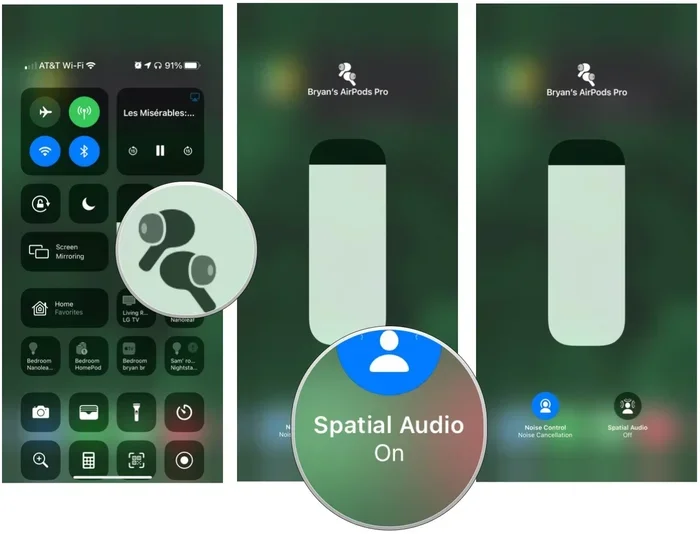
Method 2: Through the Control Center
Want a quicker way? Use the Control Center trick. This works great while watching videos.
- Swipe down from the top-right corner of your screen (on newer iPhones)
- Press and hold the volume slider
- Look for the Spatial Audio icon at the bottom
- Tap it to cycle through options: Off, Fixed, and Head Tracked
This method is perfect when you’re watching a movie and want to quickly switch between regular stereo and spatial audio. You can hear the difference instantly.
Setting Up Personalized Spatial Audio
Want the ultimate spatial audio experience? Set up a personalized profile. Here’s how:
- Make sure your iPhone is running iOS 16 or newer
- Connect your AirPods Pro 2
- Open Settings on your iPhone
- Tap your name at the top
- Look for Spatial Audio in the list
- Tap Personalized Spatial Audio
- Follow the on-screen instructions to scan your face and ears
The scanning process takes about a minute. Your iPhone will guide you through turning your head slowly in a circle. Make sure you’re in a well-lit room. Hold your phone about 12 inches from your face. Once complete, your personalized profile syncs automatically to all your Apple devices.
Spatial Audio vs. Regular Stereo: What’s the Difference?
You might wonder if spatial audio is really worth all the fuss. Let’s compare it directly to traditional stereo sound.
Regular Stereo Sound
Stereo audio has been around since the 1950s. It uses two channels: left and right. When you listen with earbuds, the left earbud plays the left channel. The right earbud plays the right channel. That’s it. Simple, but limited.
Stereo works great for music. But it falls short for movies and games. When you watch an action scene, a stereo mix can’t make a bullet fly past you convincingly. The sound just comes from left or right. There’s no sense of motion through space.
Spatial Audio Sound
Spatial audio throws these limitations out the window. It uses advanced processing to create multiple virtual speakers around your head. Sound can come from:
- Above you (think rain or a helicopter)
- Below you (like footsteps on the ground)
- In front of you (dialog and main sounds)
- Behind you (ambient effects and surprises)
- Anywhere in between (smooth, realistic motion)
The difference is night and day. Imagine watching a nature documentary. With stereo, a bird’s call comes from either left or right. With spatial audio, the bird flies overhead from front to back. You can almost feel its wings.
Music: A Special Case
Music is interesting. Traditional stereo recordings have a “sweet spot” where everything sounds balanced. You need to sit perfectly centered between two speakers. With earbuds, stereo music sounds decent but flat.
Spatial audio changes this. Vocals feel like they’re coming from a point in front of you. Instruments spread out around you. Drums might sound like they’re slightly behind you. Bass wraps around. It creates a more enveloping, emotional listening experience.
Important Note: Not everyone prefers spatial audio for music. Some audiophiles prefer the pure stereo mix. That’s why Apple gives you the option to switch between modes. Try both and see which one you prefer.
Tips and Tricks for the Best Spatial Audio Experience
Want to get the most out of spatial audio on your AirPods Pro 2? These tips will help.
Tip 1: Use the Right Ear Tip Fit
Spatial audio depends on a good seal in your ears. If your AirPods Pro 2 don’t fit properly, the effect suffers. Apple includes four ear tip sizes (XS, S, M, L) in the box. Take the time to find the right size.
You can check your fit using the Ear Tip Fit Test. Here’s how:
- Connect your AirPods Pro 2
- Go to Settings > Bluetooth
- Tap the “i” next to your AirPods
- Tap Ear Tip Fit Test
- Follow the prompts to play test audio
The test tells you if your seal is good or if you need to adjust. A proper seal improves bass response and makes spatial audio sound much better.
Tip 2: Keep Your AirPods Updated
Apple releases firmware updates for AirPods regularly. These updates often improve spatial audio performance. Make sure your AirPods Pro 2 stay updated.
Updates happen automatically when your AirPods are in their case, charging, and near your iPhone with Wi-Fi enabled. You don’t have to do anything. But if you want to check, go to Settings > Bluetooth > tap the “i” next to your AirPods. You’ll see the current firmware version.
Tip 3: Choose the Right Source Content
Spatial audio only works with content mixed for it. Regular stereo content plays in stereo, even with spatial audio enabled. For the best experience, look for content labeled “Dolby Atmos,” “Spatial Audio,” or “5.1 surround.”
Apple TV+ has the best support. Almost every original show and movie supports spatial audio. Apple Music has thousands of Atmos-mixed songs. Netflix and Disney+ are adding more Atmos content every month.
Tip 4: Try the “Fixed” Mode
Most people love head tracking. But some find it distracting. If you prefer, you can use spatial audio without head tracking. Just select “Fixed” instead of “Head Tracked” in your settings.
Fixed mode still gives you 3D sound, but the audio doesn’t move when you turn your head. Some people prefer this for music listening. Experiment with both modes to see which you like best.
Tip 5: Manage Battery Life
Spatial audio uses more processing power than regular audio. This can slightly reduce battery life. If you’re running low on battery and need your AirPods to last, turn off spatial audio. You’ll squeeze out a bit more listening time.
AirPods Pro 2 typically last about 6 hours with spatial audio off. With it on, you might get 5 to 5.5 hours. The difference isn’t huge, but it adds up on long trips.
Common Questions About AirPods Pro 2 Spatial Audio
Let’s address some common questions and clear up confusion.
Does Spatial Audio Work with Android Devices?
This is a tricky question. AirPods Pro 2 work with Android phones via Bluetooth. But spatial audio is an Apple feature. It only works when connected to Apple devices like iPhones and iPads. On Android, you’ll get regular stereo sound.
Some Android phones support Dolby Atmos on their own, but that’s different. It uses the phone’s built-in processing, not your AirPods. So if spatial audio is important to you, stick with Apple devices.
Does Spatial Audio Drain Battery Quickly?
As mentioned earlier, spatial audio uses more battery. But the impact is minimal. Most users won’t notice a big difference. If you’re worried about battery, just turn off spatial audio when you don’t need it.
Can I Use Spatial Audio for Phone Calls?
Yes! Spatial audio works with FaceTime calls on iPhones. The other person’s voice sounds like it’s coming from a specific spot in space. It makes video calls feel more natural.
However, regular phone calls don’t support spatial audio. They use standard mono or stereo audio. Only FaceTime and certain VoIP apps support the feature.
Is Spatial Audio the Same as Dolby Atmos?
They’re similar technologies with different implementations. Dolby Atmos is the content format. Spatial audio is how Apple delivers that content to your ears. Apple Music uses Dolby Atmos for its spatial audio tracks. So when you play a Dolby Atmos song on Apple Music with AirPods Pro 2, you’re experiencing spatial audio.
Think of it this way: Dolby Atmos is the recipe. Spatial audio is the way your AirPods cook and present that recipe.
Can I Hear the Difference?
Absolutely. The difference between stereo and spatial audio is dramatic, especially with good content. Try watching a Marvel movie on Disney+ with spatial audio on, then turn it off. The difference will blow your mind. Explosions feel more powerful. Dialog sounds clearer. Music becomes more emotional.
If you’re new to spatial audio, start with something you’re familiar with. Watch a movie you’ve seen before with spatial audio enabled. You’ll notice details you never heard before.
The Future of Spatial Audio
Spatial audio isn’t a passing trend. It’s the future of how we’ll listen to content. Apple continues to invest heavily in this technology.
Did You Know? Apple acquired several audio technology companies in the 2010s to develop spatial audio. They’ve been working on this for over a decade. The AirPods Pro 2 represent years of research and development.
As more content creators adopt spatial audio, the experience will only get better. Already, music artists are mixing new releases with Atmos in mind. Movie studios are producing more Atmos content than ever. Gaming companies are adding spatial audio support to their games.
Apple itself is expanding the feature. Recent updates brought Personalized Spatial Audio to even more devices. The company is also working on lossless audio combined with spatial audio. This would give you the best of both worlds: pristine sound quality with immersive 3D positioning.
Final Thoughts
AirPods Pro 2 absolutely support spatial audio. It’s one of the defining features of these earbuds. From dynamic head tracking to personalized profiles, the spatial audio experience on AirPods Pro 2 is among the best you can find.
If you own AirPods Pro 2, give spatial audio a serious try. Find a movie or song that uses the technology. Spend some time listening with spatial audio on. The difference is remarkable. You’ll hear details you never noticed before. You’ll feel like you’re inside the music or movie, not just listening to it.
Remember to set up Personalized Spatial Audio for the best experience. Use the right ear tips for a proper seal. And make sure your content supports the format. With these tips, you’ll unlock the full potential of your AirPods Pro 2.
So go ahead and dive in. Your favorite music and movies are waiting. And trust us, once you experience true spatial audio, you won’t want to go back to plain old stereo.