Featured image for Airpods Pro multiple devices
Image source: descriptive.audio
Yes, AirPods Pro support multiple devices through Apple’s automatic switching feature, allowing seamless transitions between your iPhone, iPad, Mac, and Apple Watch. This functionality is built into all AirPods Pro models, including the original, AirPods Pro 2, and the latest AirPods Pro 3. The feature works best within the Apple ecosystem, using your iCloud account to sync devices. While AirPods Pro can connect to non-Apple devices via Bluetooth, automatic switching only functions across Apple products signed into the same iCloud account.
Key Takeaways
- Yes, AirPods Pro Have Multi-Device Support: All AirPods Pro models can connect to multiple Apple devices simultaneously through automatic switching technology.
- Apple Ecosystem Required: The seamless switching feature only works across Apple devices signed into the same iCloud account.
- Bluetooth Compatibility: AirPods Pro can pair with non-Apple devices like Android phones and Windows PCs, but manual reconnection is needed.
- Easy Setup Process: Connecting AirPods Pro to multiple devices takes just minutes through the standard Bluetooth pairing menu.
- Limitations Exist: Only one device can actively use AirPods Pro at a time; true simultaneous audio streaming is not supported.
- Settings Matter: Users can customize automatic switching behavior through iOS, iPadOS, and macOS settings for better control.
- All Generations Included: This feature works on AirPods Pro (1st gen), AirPods Pro 2, AirPods Pro 2 USB-C, and AirPods Pro 3.
📑 Table of Contents
- Everything You Need to Know About AirPods Pro Multi-Device Support
- Understanding AirPods Pro Multi-Device Support
- Which AirPods Pro Models Support Multiple Devices?
- Apple Devices That Work With AirPods Pro Multi-Device Support
- How to Set Up AirPods Pro With Multiple Devices
- Managing Your AirPods Pro Multi-Device Connections
- Troubleshooting Common Multi-Device Issues
- Making the Most of Your AirPods Pro Multi-Device Experience
- Final Thoughts on AirPods Pro Multi-Device Support
Everything You Need to Know About AirPods Pro Multi-Device Support
Picture yourself finishing a video call on your Mac, then picking up your iPhone to listen to music, and your earbuds follow you without missing a beat. That’s the magic of AirPods Pro multi-device support, and it’s one of the most loved features among Apple users worldwide.
If you’re asking “do AirPods Pro have multiple device support,” the short answer is absolutely yes. Every AirPods Pro model ever made comes with this capability built right in. Apple designed these earbuds to move with you across your devices as naturally as you move between apps throughout your day.
This guide will walk you through everything about connecting your AirPods Pro to multiple devices. You’ll learn how the technology works, which devices are supported, how to set everything up, and what to do when things don’t work perfectly. Let’s dive in.
Understanding AirPods Pro Multi-Device Support
What Exactly Is Multi-Device Support?
Think of multi-device support like having a universal remote control that knows which TV you want to use. Your AirPods Pro can “remember” several devices at once and switch between them automatically when needed. It’s not magic. It’s a clever piece of technology that Apple built into both the earbuds and their operating systems.
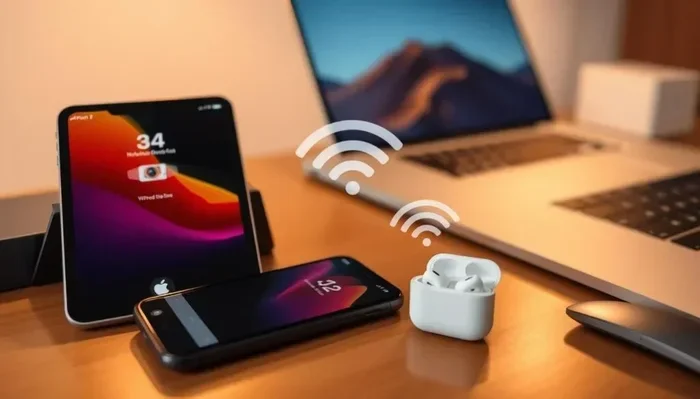
Visual guide about Airpods Pro multiple devices
Image source: electrpro.com
When people ask “do AirPods Pro have multiple device support,” they’re usually wondering about two different things. The first is whether AirPods Pro can remember more than one device. The second is whether they can play audio from multiple devices at the same exact moment. Here’s the important distinction: AirPods Pro can absolutely remember and connect to multiple devices, but they can only play sound from one source at a time.
Did You Know? Apple first introduced automatic device switching with iOS 14 in September 2020. Before this update, users had to manually disconnect from one device before connecting to another, which was quite frustrating for people who owned multiple Apple products.
How Does This Technology Actually Work?
Imagine your AirPods Pro as a smart little assistant that listens for signals from your devices. Here’s what happens behind the scenes every time you use them.
Your AirPods Pro use Bluetooth to talk to nearby devices. But Apple added something special on top of basic Bluetooth. They created a system that uses your iCloud account as a bridge. When you sign into multiple devices with the same Apple ID, those devices share information about your AirPods Pro.
The moment you start playing audio on your iPad, your AirPods Pro receive a signal saying “hey, there’s audio here, and the user wants to hear it.” Your iPhone notices this too and says “okay, I’ll step aside.” The whole process happens in just a few seconds, often before you even realize it happened.
This automatic switching relies on a few key pieces working together. Your Apple ID connects everything. The H1 or H2 chip inside your AirPods Pro handles the communication. And your devices need to be running recent versions of iOS, iPadOS, or macOS to make it all work smoothly.
Which AirPods Pro Models Support Multiple Devices?
The Complete List of Compatible Models
Good news for everyone: every single AirPods Pro model supports multi-device connectivity. Apple made sure this feature was part of the package from day one, and they’ve kept it consistent across all generations.
Here’s every AirPods Pro model that works with multiple devices:
- AirPods Pro (1st Generation): Released in October 2019, these introduced the feature with the original H1 chip
- AirPods Pro (2nd Generation): Launched in September 2022 with an upgraded H2 chip for faster switching
- AirPods Pro (2nd Generation) USB-C: Released in September 2023, same features with a different charging case
- AirPods Pro 3: The newest model with the fastest and most reliable switching capabilities
No matter which version you own or plan to buy, you’ll get the same multi-device support. The newer models do switch between devices slightly faster thanks to improved chips, but the core functionality is identical across the board.
What About AirPods 4 and AirPods Max?
You might be wondering whether other AirPods models share this feature. Yes, they do. The standard AirPods (3rd generation and later), AirPods 4, and AirPods Max all support the same automatic switching technology. Apple made this a standard feature across their entire AirPods lineup.
Apple Devices That Work With AirPods Pro Multi-Device Support
The Full Range of Compatible Apple Products
Your AirPods Pro can connect to just about every Apple device you own. The list is surprisingly long, which is great news if you’ve built up a collection of Apple products over the years.
iPhones that work with AirPods Pro:
- iPhone 6s and newer models
- All iPhone SE models
- The entire iPhone 15 and iPhone 16 lineup
iPads that work with AirPods Pro:
- All iPad Pro models
- iPad Air 2 and newer
- iPad (5th generation) and newer
- iPad mini 4 and newer
Mac computers that work with AirPods Pro:
- MacBook models from 2012 and later
- iMac models from 2012 and later
- Mac Pro, Mac Mini, and Mac Studio
- All M1, M2, M3, and M4 chip Macs
Other Apple devices:
- Apple Watch Series 3 and newer
- Apple TV 4K and Apple TV HD
- Apple Vision Pro
Did You Know? Apple Vision Pro actually treats AirPods Pro as the preferred audio device when available, since the spatial audio experience is enhanced through the earbuds compared to the headset’s built-in speakers.
The Importance of Being Signed Into the Same Apple ID
Here’s something many people miss: all your Apple devices need to share the same iCloud account for automatic switching to work properly. Think of your Apple ID as a digital keyring that tells all your devices “we belong to the same person.”
If you have separate Apple IDs for work and personal use, your AirPods Pro will only switch between devices using the same ID. This actually makes sense from a privacy standpoint. You probably don’t want your work Mac suddenly playing your personal Spotify playlist when colleagues are around.
To check whether all your devices use the same Apple ID, go to Settings on your iPhone, tap your name at the top, and look at the email address. Repeat this on each device to confirm they all match.
How to Set Up AirPods Pro With Multiple Devices
Initial Pairing With Your First Device
Getting started is easier than you might think. The whole process takes just a few minutes, and your AirPods Pro will guide you through it.
Follow these simple steps to pair your AirPods Pro for the first time:
- Open the charging case near your iPhone or iPad with the lid open
- Wait for the setup animation to appear on your screen
- Tap “Connect” when prompted
- Follow the on-screen instructions to finish setup
- Your device signs into iCloud automatically registers your AirPods Pro
That first connection is the foundation. Once you’ve paired with one device, the rest becomes much easier.
Adding Additional Apple Devices
Here’s where the magic really happens. After your first pairing, adding more devices takes just seconds.
To add another Apple device to your AirPods Pro:
- On your new device: Make sure Bluetooth is turned on
- Sign into the same Apple ID as your first device
- Open the AirPods Pro case near the new device
- Hold the setup button on the back of the case until the light flashes white
- Select your AirPods Pro from the Bluetooth menu
The new device will now appear in the list of devices that can automatically switch with your AirPods Pro. You can repeat this process for every Apple device you want to add.
Pairing With Non-Apple Devices
Here’s something important to understand: AirPods Pro work with non-Apple devices too, but the experience is different. You can pair them with Android phones, Windows PCs, smart TVs, gaming consoles, and just about anything that accepts Bluetooth audio.
To pair with a non-Apple device:
- Put your AirPods Pro in pairing mode by holding the setup button on the case
- Wait for the white light to start flashing
- Open Bluetooth settings on your non-Apple device
- Select “AirPods Pro” from the available devices list
- Confirm the pairing if prompted
The catch is that you can only pair with one non-Apple device at a time. If you want to use your AirPods Pro with a different non-Apple device, you’ll need to disconnect from the first one manually. Automatic switching doesn’t work outside the Apple ecosystem.
Managing Your AirPods Pro Multi-Device Connections
Turning Automatic Switching On and Off
Sometimes automatic switching isn’t what you want. Maybe you’re listening to music on your iPhone and don’t want your AirPods Pro jumping to your Mac when a notification arrives. The good news is you can control this behavior.
To disable automatic switching on iPhone or iPad:
- Open the Settings app on your device
- Tap on Bluetooth
- Find your AirPods Pro in the list
- Tap the “i” icon next to the device name
- Select “Connect to This iPhone/iPad”
- Choose “When Last Connected to This iPhone/iPad” instead of “Automatically”
To disable automatic switching on Mac:
- Open System Settings on your Mac
- Click on Bluetooth
- Click “Options” next to your AirPods Pro
- Uncheck “Connect to This Mac Automatically”
When you make these changes, your AirPods Pro will stay connected to your chosen device until you manually switch them to another one. This is perfect for people who find automatic switching annoying or disruptive.
Manually Switching Between Devices
Sometimes you want to switch devices manually rather than waiting for automatic switching to do its thing. It’s quick and easy to take control.
On iPhone or iPad: Open Control Center, long-press the audio card in the top right corner, and tap your AirPods Pro under “Audio Output.”
On Mac: Click the Bluetooth icon in your menu bar or the sound icon in System Settings, then select your AirPods Pro from the output device list.
On Apple Watch: Swipe up from the bottom of the watch face, tap the AirPlay icon, and choose your AirPods Pro.
Did You Know? You can also use Siri to switch devices. Just say “Hey Siri, switch audio to my iPad” and your AirPods Pro will move to that device without you lifting a finger.
Troubleshooting Common Multi-Device Issues
When Automatic Switching Doesn’t Work
Sometimes the automatic switching feature doesn’t work as smoothly as it should. Don’t worry. Most issues have simple fixes.
Check these common culprits first:
- Same Apple ID: Verify all devices use the same iCloud account
- Software updates: Make sure all devices run the latest operating system versions
- Bluetooth is on: Confirm Bluetooth is enabled on all your devices
- Handoff is enabled: Turn on Handoff in your settings for better connectivity
- Same Wi-Fi network: Connect all devices to the same Wi-Fi when possible
If issues persist, try this nuclear option: unpair your AirPods Pro from all devices, restart every device, then pair them again from scratch. This clears out any corrupted connection data and usually solves stubborn problems.
Fixing Audio Quality Issues
Audio quality can sometimes suffer if connections get tangled between multiple devices. Here are quick fixes.
First, check the battery level on your AirPods Pro. Low battery can affect audio performance. Second, make sure no other Bluetooth devices are interfering with the signal. Third, try moving closer to the device you’re connected to. Bluetooth has a limited range, usually about 30 feet or 10 meters.
If you’re hearing static or dropouts specifically when switching between devices, the issue is likely software-related. Update your operating systems and check Apple’s support page for any known bugs with your specific device combination.
Resolving Connection Failures
Sometimes your AirPods Pro simply refuse to connect to a new device. Here’s what to do.
Start by resetting your AirPods Pro. Put them in the case, close the lid, wait 30 seconds, then open the lid and hold the setup button for about 15 seconds until the light flashes amber and then white. This factory reset clears all previous pairings and lets you start fresh.
If that doesn’t work, try forgetting the AirPods Pro on the problematic device and pairing them again. Go to Bluetooth settings, tap the “i” icon next to your AirPods Pro, and select “Forget This Device.” Then pair them as if for the first time.
Making the Most of Your AirPods Pro Multi-Device Experience
Tips for Power Users
Once you’ve set up multi-device support, here are some pro tips to get the most out of the feature.
Tip 1: Name your AirPods Pro something recognizable. If you own multiple sets of AirPods, give each pair a unique name in your Bluetooth settings. This prevents confusion when switching between devices.
Tip 2: Customize the press-and-hold gesture. You can set different functions for the force sensor on each AirPod. Some people use one for noise control and the other for Siri.
Tip 3: Use Find My to track your devices. If you lose your AirPods Pro, the Find My app can locate them on a map or play a sound to help you find them.
Tip 4: Take advantage of spatial audio. When watching movies or shows on your Apple TV or iPad, AirPods Pro deliver immersive spatial audio that follows your head movements.
Tip 5: Update firmware regularly. Apple occasionally releases firmware updates that improve switching performance and fix bugs. Keep your AirPods Pro charged and near your iPhone to receive these updates automatically.
The Future of AirPods Pro Connectivity
Apple continues to improve the multi-device experience with each software update. Recent versions of iOS have made switching faster and more reliable. There’s speculation that future AirPods models might support true simultaneous connections, allowing the same audio to play on multiple devices at once. However, Apple hasn’t officially announced any such feature.
For now, the current implementation strikes a good balance between convenience and battery life. True simultaneous streaming would require more power and more complex chips, so it remains a feature for future generations.
Final Thoughts on AirPods Pro Multi-Device Support
AirPods Pro multi-device support represents one of the most practical features Apple has built into their earbuds. The ability to seamlessly transition between your iPhone, iPad, Mac, and Apple Watch makes these earbuds genuinely useful for anyone deeply invested in the Apple ecosystem.
To answer the original question clearly: yes, AirPods Pro have multiple device support, and this feature works reliably across all current models. The automatic switching technology saves time and frustration, while the option to manually control connections gives you flexibility when needed.
Whether you’re a creative professional switching between Mac and iPad throughout the day, a student moving from iPhone to laptop, or simply someone who owns multiple Apple devices, AirPods Pro deliver a connectivity experience that’s hard to beat. The setup process is straightforward, the day-to-day use is intuitive, and the troubleshooting options are comprehensive.
If you’ve been wondering whether AirPods Pro are worth it for the multi-device capability alone, the answer is a resounding yes, especially if you already own several Apple products. This feature alone can transform how you interact with your technology throughout the day.
Frequently Asked Questions
Do all AirPods Pro models support multiple devices?
Yes, every AirPods Pro model supports multiple devices, including the original AirPods Pro, AirPods Pro 2, AirPods Pro 2 USB-C, and AirPods Pro 3. This feature has been available since the first generation launched in 2019.
Can AirPods Pro connect to Android and Windows devices?
AirPods Pro can pair with Android phones, Windows PCs, and other Bluetooth devices. However, automatic switching only works within the Apple ecosystem. Non-Apple devices require manual connection and disconnection each time.
Do AirPods Pro need the same Apple ID on all devices?
Yes, all your Apple devices must be signed into the same iCloud account for automatic switching to function. Devices using different Apple IDs will not trigger automatic transitions between each other.
Can AirPods Pro play audio from two devices at once?
No, AirPods Pro can only play audio from one device at a time. The multi-device support means your earbuds can remember and switch between multiple devices, not stream from several sources simultaneously.
How do I stop AirPods Pro from switching automatically?
Go to Bluetooth settings on your iPhone, iPad, or Mac, find your AirPods Pro, and change the connection setting from “Automatically” to “When Last Connected to This Device.” This keeps them on your chosen device until you manually switch.
Why are my AirPods Pro not switching between devices?
Common reasons include devices using different Apple IDs, outdated software, Bluetooth being turned off, or devices being too far apart. Restarting your devices and re-pairing your AirPods Pro usually resolves most switching issues.