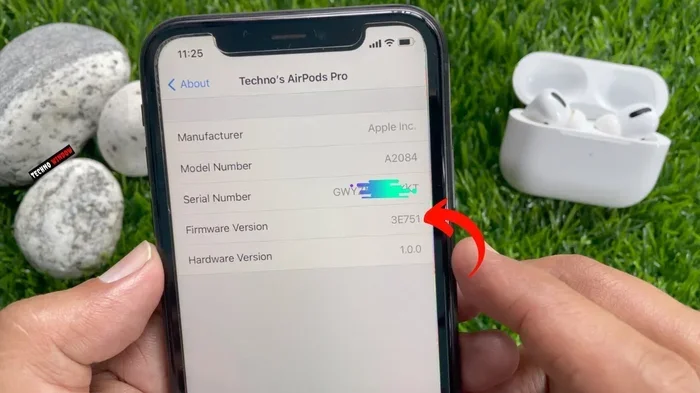
Featured image for AirPods Pro firmware update
Image source: i.ytimg.com
No, you don’t have to update your AirPods Pro, but you really should. Firmware updates deliver crucial bug fixes, new features, and security patches that keep your earbuds performing at their best. Skipping updates can mean missing out on improvements like better noise cancellation, enhanced sound quality, and compatibility with the latest iOS features.
Picture this: you’re about to jump on an important call, you pop in your AirPods Pro, and suddenly the sound is crackly, the noise cancellation feels weak, and one earbud keeps disconnecting. Frustrating, right? Now imagine if a simple update could have prevented all of that. That’s the power of keeping your AirPods Pro firmware current.
Many people wonder whether updating their AirPods Pro is truly necessary. After all, they’re just earbuds—how much can really change? The truth is, AirPods Pro are tiny computers. They run software (called firmware) that controls everything from sound quality to how they connect to your phone. Just like your iPhone needs iOS updates, your AirPods Pro needs firmware updates to stay in tip-top shape.
In this guide, we’ll break down everything you need to know about AirPods Pro updates. You’ll learn what updates do, how to check your current version, whether you can skip them, and what happens if you do. Let’s dive in.
Key Takeaways
- Updates Are Not Mandatory: Apple won’t force you to update your AirPods Pro, but skipping them means missing bug fixes and features.
- Automatic Background Updates: AirPods Pro typically update themselves when connected to an iPhone with Wi-Fi, so you may already be updated without knowing.
- Manual Updates Are Limited: Apple doesn’t offer a direct “update now” button—you can’t force an update manually.
- Updates Improve Performance: Firmware updates have fixed issues like crackling sounds, ANC problems, and battery drain over the years.
- Checking Your Firmware Is Easy: You can verify your current firmware version in your iPhone’s Settings under Bluetooth.
- Compatibility Matters: Older AirPods Pro may not support the newest features introduced in recent iOS updates.
- Troubleshooting Helps: If an update won’t install, resetting your AirPods or iPhone often solves the problem.
📑 Table of Contents
- What Are AirPods Pro Firmware Updates?
- Do You Have to Update AirPods Pro?
- How to Check Your AirPods Pro Firmware Version
- How to Update AirPods Pro Firmware
- What Changes With Each Major Update?
- What Happens If You Never Update?
- Special Considerations for Different AirPods Pro Models
- Security and Privacy Aspects of Updates
- Tips for Maintaining Your AirPods Pro
- Common Myths About AirPods Pro Updates
- Conclusion
What Are AirPods Pro Firmware Updates?
Think of your AirPods Pro as a tiny computer that lives in your ears. Just like your laptop or phone, it has its own operating system. For AirPods, that operating system is called firmware. Firmware is the special software that tells your AirPods how to behave—how to cancel noise, how to detect when they’re in your ear, and how to talk to your iPhone.
When Apple releases a firmware update, they’re essentially sending your AirPods a new set of instructions. Maybe they figured out a better way to block background noise. Maybe they squashed a bug that was causing audio dropouts. Or maybe they added a brand-new feature like Adaptive Transparency or Conversation Awareness.
Why Firmware Updates Matter
You wouldn’t drive a car for ten years without ever getting an oil change, would you? Sure, the car might still run, but it won’t run well. Firmware updates are like oil changes for your AirPods Pro. They keep things running smoothly, safely, and with all the latest bells and whistles.
According to Apple’s support documentation, firmware updates have historically addressed issues like reduced noise cancellation performance, crackling or static sounds, and problems with automatic switching between Apple devices. Without these updates, you might experience glitches that Apple has already fixed for everyone else.
What Do Updates Typically Include?
Most AirPods Pro firmware updates fall into a few categories:
- Bug Fixes: Resolving audio glitches, connectivity hiccups, or battery drain issues.
- Performance Improvements: Making noise cancellation more effective or sound quality richer.
- New Features: Adding capabilities like spatial audio, Find My enhancements, or hearing health features.
- Security Patches: Closing potential vulnerabilities that could compromise your device.
- Compatibility Updates: Ensuring your AirPods work smoothly with the latest iPhones, iPads, and Macs.
Do You Have to Update AirPods Pro?
Here’s the straightforward answer: no, you don’t have to update your AirPods Pro. Apple will never force a firmware update on you. Your AirPods will keep working just fine on their current firmware—mostly. You won’t be locked out, and you won’t suddenly stop being able to listen to music.
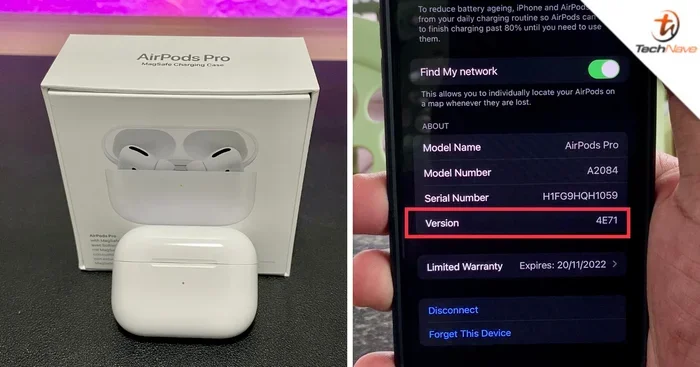
Visual guide about AirPods Pro firmware update
Image source: technave.com
However, “not having to” update and “not needing to” update are two different things. Let’s break down what happens if you don’t update.
What Happens If You Skip Updates?
Skipping firmware updates is a bit like skipping your annual check-up at the doctor. You might feel fine, but there could be underlying issues you don’t know about. Here’s what you might miss:
- Known Bugs: Apple has publicly acknowledged several bugs over the years, including a crackling sound issue on AirPods Pro that was fixed in firmware update 2D27. If you never updated, you’d still hear that crackling.
- Reduced Noise Cancellation: In 2020, Apple admitted that some AirPods Pro units had sound quality issues affecting noise cancellation. Firmware updates helped many users, and a replacement program was launched for others.
- Missing Features: When iOS 15 launched Conversation Awareness and other features, only AirPods Pro with the latest firmware could use them.
- Security Risks: Like any connected device, AirPods Pro could theoretically be exploited. Updates help close those doors.
The Real Question: Should You Update?
While updates aren’t mandatory, they’re highly recommended. The benefits far outweigh the small effort required (which, honestly, is almost no effort at all since updates happen automatically).
Did you know that Apple has released over 20 firmware updates for AirPods Pro since the original model launched in 2019? That’s a lot of improvements you could be missing out on. Each one typically addresses user complaints, enhances performance, or adds new functionality.
How to Check Your AirPods Pro Firmware Version
Before you can decide whether you need an update, you need to know what version you’re running. Checking your firmware is quick and painless. Think of it like checking the expiration date on your milk—better to know now than to find out the hard way.
Step-by-Step Instructions
- Connect Your AirPods: Make sure your AirPods Pro are connected to your iPhone or iPad. Pop them in your ears or open the case near your device.
- Open Settings: Tap the gray gear icon on your home screen.
- Tap Bluetooth: You’ll see this in the top section of Settings.
- Find Your AirPods: Scroll down to “My Devices” and tap the “i” (information) icon next to your AirPods Pro.
- Look for Firmware Version: Scroll down to the “About” section. You’ll see a line that says “Version” followed by a number like “6F21” or “5E135.”
That alphanumeric code is your firmware version. As of late 2024, the latest AirPods Pro firmware versions include 6F21 for the original AirPods Pro, 6F21 for AirPods Pro 2 (Lightning), and 7B12 for AirPods Pro 2 (USB-C). Apple doesn’t publish official changelogs, so figuring out exactly what each version does often requires community detective work.
Comparing Versions
Once you know your version, you can compare it to the latest version online. Apple doesn’t have an official “latest firmware” page, but tech sites like MacRumors maintain updated lists. If your version matches the latest one, you’re all set. If not, you might need to trigger an update.
How to Update AirPods Pro Firmware
Here’s something that surprises many people: you can’t manually trigger an AirPods Pro update. There’s no “Update Now” button, no progress bar, and no way to force it to install. Apple handles firmware updates automatically in the background. It’s like how a cat decides when it wants attention—your AirPods will update when they feel like it.
While this might seem frustrating, it’s actually designed to be convenient. Most users never even realize their AirPods have updated. It just happens.
The Automatic Update Process
For an automatic update to occur, your AirPods Pro need to meet specific conditions:
- Connected to an iOS Device: Your AirPods need to be paired with an iPhone, iPad, or iPod touch.
- Wi-Fi Connection: Your iOS device must be connected to Wi-Fi (not cellular data).
- Charging Case: Your AirPods need to be in their charging case.
- Battery Level: The case should have at least 20% battery, though recommendations vary.
- Proximity: Your iOS device should be near the AirPods.
When all these conditions align, the update will download and install on its own. It might take a few hours or even a day or two, so patience is key.
Tips to Speed Up Updates
If you know an update is available but it hasn’t installed yet, try these tricks:
- Reset the Connection: Forget your AirPods in Bluetooth settings, then re-pair them.
- Use Your AirPods Briefly: Pop them in, listen to something for a minute, then put them back in the case.
- Charge the Case: Make sure the case is plugged in or has plenty of battery.
- Keep iOS Updated: Make sure your iPhone is running the latest version of iOS, as this can trigger AirPods updates.
- Be Patient: Seriously, sometimes updates just take time. Put your AirPods in the case, leave them near your iPhone on Wi-Fi, and let magic happen.
Common Update Issues and Fixes
Sometimes, updates get stuck or don’t install properly. Here are some troubleshooting tips:
- Restart Your iPhone: A simple reboot can clear up connectivity glitches.
- Reset Your AirPods: Press and hold the setup button on the back of the case until the light flashes amber, then white. This resets them to factory settings.
- Try a Different iOS Device: If you have access to another iPhone or iPad, try pairing and updating from there.
- Update iOS First: Sometimes, your iPhone needs to be on the latest iOS before AirPods updates can proceed.
- Contact Apple Support: If nothing works, there might be a hardware issue. Apple’s support team can help diagnose the problem.
What Changes With Each Major Update?
While Apple doesn’t publish detailed changelogs, we can piece together what major updates have done based on user reports and Apple’s own announcements. Let’s look at some of the most significant updates over the years.
AirPods Pro 1st Generation Updates
The original AirPods Pro received numerous updates after their October 2019 launch:
- 2A3XX Series: Initial firmware versions focused on stability and performance.
- 2D27: Addressed the widely reported crackling or static sound issue that affected some users.
- 3A283: Added support for the Find My network, allowing users to locate lost AirPods.
- 3E751: Introduced Conversation Awareness and other iOS 15 features.
- 4A400: Brought spatial audio improvements and other refinements.
AirPods Pro 2nd Generation Updates
Released in September 2022, the AirPods Pro 2 have received feature-rich updates:
- 5A374 and 5B58: Early updates focused on connectivity and battery life.
- 5E133 / 5E135: Added Adaptive Transparency and improved noise cancellation.
- 6A300 / 6A301: Brought support for the iOS 17 features, including personalized volume.
- 6F21: Introduced the Hearing Test and Hearing Aid features announced at WWDC 2024.
- 7B12: The latest version for the USB-C model, with continued improvements.
Notable Feature Additions Over Time
Some features that have come to AirPods Pro via firmware updates include:
- Spatial Audio: Immersive, theater-like sound that follows your head movement.
- Adaptive Transparency: Dynamically reduces loud noises while still letting you hear your surroundings.
- Conversation Awareness: Automatically lowers music volume when you start talking.
- Personalized Volume: Uses machine learning to adjust volume based on your environment.
- Find My Improvements: The charging case now has a built-in speaker that plays sounds when you’re trying to locate it.
- Hearing Health Features: The AirPods Pro 2 can now perform a clinical-grade hearing test and function as an over-the-counter hearing aid (where supported).
Did you know that the AirPods Pro 2’s hearing aid feature was approved by the FDA in September 2024? It was the first over-the-counter hearing aid software device to receive such approval. That’s a huge deal—and it only works if you update your firmware.
What Happens If You Never Update?
Let’s paint a picture of what life looks like if you never update your AirPods Pro firmware.
The Good News
Your AirPods will still work. You can still listen to music, take calls, and use basic features like transparency mode and active noise cancellation. The core functionality won’t disappear.
The Not-So-Good News
However, you’ll be missing out on:
- Bug Fixes: Any known issues will remain unfixed. That crackling sound some users complained about in 2020? If you never updated, you’d still have it.
- Performance Improvements: Battery life, connection stability, and sound quality improvements won’t reach you.
- New Features: You’d miss out on everything from spatial audio to hearing aid capabilities.
- Compatibility: As iOS evolves, older firmware might not play nicely with new features or apps.
- Security: Though rare, unpatched vulnerabilities could theoretically be exploited.
Real-World Example
Imagine a friend tells you about an amazing new feature on AirPods Pro—let’s say Personalized Volume, which automatically adjusts sound levels based on your surroundings. You excitedly try to enable it, but nothing happens. Why? Because you never updated your firmware. You’re stuck with a “dumb” version of AirPods Pro while everyone else enjoys the latest and greatest.
It’s like owning a smartphone but never updating the apps. Technically, the phone works, but you’re missing out on the entire modern experience.
Special Considerations for Different AirPods Pro Models
Not all AirPods Pro are created equal. Depending on which model you have, your update experience might differ slightly.
AirPods Pro (1st Generation)
Released in October 2019, the original AirPods Pro are still receiving updates, though Apple may eventually phase them out. As of late 2024, they receive firmware updates alongside newer models. However, some of the newest features (like hearing health) are exclusive to the 2nd generation.
If you’re still using 1st generation AirPods Pro, updating is even more important to maximize the value of your older device. Every update potentially extends its useful life.
AirPods Pro (2nd Generation) – Lightning
Released in September 2022, this version uses a Lightning charging case. It supports all the latest features and continues to receive regular updates. The hardware is essentially identical to the USB-C version, so feature parity is maintained.
AirPods Pro (2nd Generation) – USB-C
Released in September 2023, this version features a USB-C charging case (replacing Lightning) and supports lossless audio when paired with the Apple Vision Pro. It receives the same updates as the Lightning model but may receive them slightly earlier in some cases.
Model-Specific Update Limitations
Some features require specific hardware and won’t work on older models regardless of firmware. For example, the hearing test and hearing aid features require the H2 chip found in AirPods Pro 2. No firmware update can add these features to the 1st generation model.
This is an important point: firmware updates can enhance existing hardware, but they can’t add new hardware capabilities. If a feature requires a new chip or sensor, older models simply won’t get it.
Security and Privacy Aspects of Updates
In an era where cybersecurity threats dominate headlines, you might wonder if AirPods Pro updates are important for security. The answer is yes, though the risk level is relatively low compared to phones or computers.
Why Security Updates Matter
AirPods Pro communicate wirelessly with your devices using Bluetooth. Like any wireless technology, Bluetooth can have vulnerabilities. While Apple hasn’t disclosed any major security breaches involving AirPods, the company regularly issues patches to address potential issues.
One notable example: in 2019, researchers found a vulnerability that could allow attackers to listen in on AirPods conversations. Apple quickly addressed this with a firmware update. While this specific vulnerability was patched long ago, it illustrates why staying current is wise.
Privacy Considerations
AirPods Pro collect various data, including usage patterns, audio settings, and hearing health metrics (on newer models). Firmware updates sometimes include privacy enhancements that give you more control over this data. By not updating, you might miss out on improved privacy protections.
Apple’s commitment to privacy is a core part of its brand, and firmware updates help maintain that commitment. Each update reinforces the security walls around your personal information.
Tips for Maintaining Your AirPods Pro
Updating firmware is just one aspect of keeping your AirPods Pro in great shape. Here are some additional tips to maximize their lifespan and performance.
Keep Your iOS Updated
AirPods Pro work best when paired with the latest iOS version. Apple often ties AirPods features to specific iOS releases, so keeping your iPhone current ensures compatibility.
Clean Your AirPods Regularly
Earwax, dust, and debris can affect sound quality and sensor performance. Use a soft, dry, lint-free cloth to clean your AirPods. For the mesh areas, a dry cotton swab works well. Avoid using water or cleaning solutions directly on the AirPods.
Manage Battery Health
AirPods Pro batteries degrade over time. To extend battery life, avoid exposing them to extreme temperatures and don’t leave them uncharged for extended periods. The optimized battery charging feature (available on AirPods Pro 2) can also help by reducing battery aging.
Use the Right Charger
For AirPods Pro 2 (USB-C), use a USB-C cable and compatible charger. For older models, use a Lightning cable or Qi-compatible wireless charger. Using the wrong charger can damage the battery or charging case.
Store Them Properly
When not in use, keep your AirPods Pro in their charging case. This protects them from physical damage and ensures they’re always charged and ready to go. The case also helps maintain the magnetic alignment needed for proper charging.
Reset When Needed
If your AirPods Pro start acting strangely—connectivity issues, sound glitches, or unresponsive controls—a reset can often solve the problem. To reset, press and hold the setup button on the back of the case until the status light flashes amber, then white.
Common Myths About AirPods Pro Updates
There are several misconceptions floating around about AirPods Pro updates. Let’s debunk some of the most common ones.
Myth 1: Updates Will Break My AirPods
While no update is completely risk-free, Apple thoroughly tests firmware before release. The vast majority of updates go smoothly and improve the user experience. If an update does cause issues, Apple typically releases a quick follow-up to address them.
Myth 2: I Should Wait Before Updating
Some tech enthusiasts recommend waiting a few days before updating to ensure no major bugs are reported. While this strategy has merit for major iOS updates, it’s less critical for AirPods firmware updates, which are smaller and less likely to cause widespread issues.
Myth 3: Updates Drain Battery Life
Some users report battery drain after updates, but this is usually temporary as the AirPods re-index and recalibrate. In the long run, updates typically improve battery efficiency by fixing battery drain bugs.
Myth 4: I Need to Update Through iTunes
Unlike iPhones, AirPods Pro don’t update through iTunes or Finder. All updates happen wirelessly through your iOS device. If someone tells you to plug your AirPods into a computer, they don’t know what they’re talking about.
Myth 5: Older AirPods Stop Working After Updates
Apple maintains backward compatibility, so older AirPods Pro continue to work even after updates designed for newer models. You won’t be “locked out” of using your device.
Conclusion
So, do you have to update your AirPods Pro? Technically, no. But should you? Absolutely, yes. Firmware updates are the key to unlocking the best possible experience from your AirPods Pro. They fix bugs, improve performance, add new features, and enhance security—all automatically, without you lifting a finger.
The beauty of AirPods Pro updates is that they happen in the background. As long as your AirPods are connected to an iOS device on Wi-Fi and have enough battery, updates will install themselves. You don’t have to do anything special. Just keep your iPhone updated, keep your AirPods charged, and let Apple handle the rest.
If you haven’t checked your firmware version in a while, take a moment to do so. You might be pleasantly surprised to discover you’re already on the latest version, or you might find an update waiting to be installed. Either way, you’ll have peace of mind knowing your AirPods Pro are performing at their absolute best.
In a world where technology constantly evolves, firmware updates are how Apple ensures your AirPods Pro evolve with it. Don’t miss out on the magic—keep your AirPods updated, and enjoy every beat, every call, and every moment of silence (thanks to that amazing noise cancellation).
Frequently Asked Questions
Do AirPods Pro update automatically?
Yes, AirPods Pro update automatically when connected to an iOS device with Wi-Fi access and placed in their charging case. You don’t need to manually trigger the update—it happens in the background, though it may take a few hours or even a couple of days to complete.
How do I know if my AirPods Pro are up to date?
Go to Settings > Bluetooth, tap the “i” icon next to your AirPods Pro, and scroll down to see the firmware version. Compare this number to the latest version listed on Apple’s support page or trusted tech sites like MacRumors to determine if you’re current.
Can I force my AirPods Pro to update?
Unfortunately, there’s no way to force an AirPods Pro firmware update. Apple doesn’t provide a manual update option. However, you can encourage an update by ensuring your AirPods are in their case, connected to your iPhone, and on Wi-Fi. Resetting the AirPods or restarting your iPhone can sometimes speed things up.
What happens if I don’t update my AirPods Pro?
Your AirPods will still work, but you’ll miss out on bug fixes, performance improvements, new features, and security patches. Known issues like audio glitches or reduced noise cancellation may persist. You also won’t be able to use new features added in recent firmware updates.
How long does it take to update AirPods Pro?
AirPods Pro firmware updates typically take anywhere from a few minutes to 24-48 hours to install. The update happens in the background, so you might not even notice it occurring. Speed depends on factors like Wi-Fi connection strength and battery level.
Do I need to update my iPhone to update my AirPods Pro?
While not always required, keeping your iPhone updated to the latest iOS version is highly recommended. Some AirPods Pro features and firmware updates require specific iOS versions to function properly. Apple often ties AirPods updates to corresponding iOS releases for compatibility reasons.