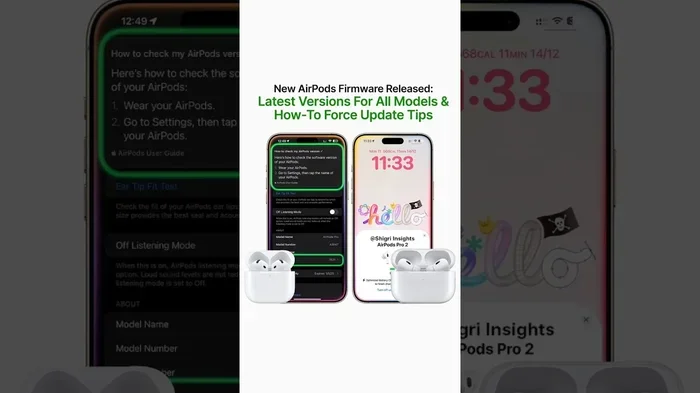
Featured image for AirPods Pro firmware update
Image source: i.ytimg.com
Yes, you should regularly update your AirPods Pro firmware. Updates deliver critical bug fixes, improve sound quality, enhance noise cancellation, and patch security vulnerabilities. The process is automatic when your AirPods are near your iPhone and charging, but you can also manually trigger updates to ensure you’re always running the latest version.
Picture this: you’re about to hop on an important video call, you pop in your AirPods Pro, and suddenly the audio sounds tinny, the noise cancellation barely works, and your iPhone keeps disconnecting from them. Frustrating, right? More often than not, the culprit behind these mysterious AirPods problems isn’t hardware failure—it’s outdated firmware.
Think of firmware updates like oil changes for your car. You can skip them for a while, but doing so eventually leads to poor performance and costly repairs down the road. AirPods Pro are tiny computers that sit in your ears, and like any computer, they need regular software updates to run smoothly. Apple releases these updates quietly in the background, which is great for convenience but terrible for awareness. Most people don’t even know their AirPods have firmware versions, let alone that they need updating.
This comprehensive guide will walk you through everything you need to know about AirPods Pro updates. We’ll explain what firmware actually is (using simple analogies), why these updates matter more than you might think, how to check your current version, and exactly how to install updates when they’re available. Whether you’re a tech novice or a seasoned Apple enthusiast, you’ll find practical, actionable advice to keep your AirPods Pro performing at their absolute best.
Key Takeaways
- Firmware Updates Are Essential: AirPods Pro updates fix bugs, improve audio quality, and enhance Active Noise Cancellation performance.
- Updates Happen Wirelessly: Firmware updates install automatically when your AirPods are in their case, charging, and near your iPhone.
- Manual Verification Is Possible: You can check your current firmware version in your iPhone’s Bluetooth settings to confirm updates have installed.
- Skipping Updates Causes Problems: Outdated firmware can lead to connectivity issues, reduced battery life, and missing features like spatial audio improvements.
- Updates Include Security Patches: Like iOS updates, AirPods firmware patches vulnerabilities that could compromise your device’s safety.
- No Computer Required: Unlike many electronics, AirPods Pro update directly from your paired iPhone without needing a Mac or PC.
- Patience Is Required: Firmware updates can take anywhere from 15 minutes to an hour, so don’t rush the process.
📑 Table of Contents
- What Exactly Are AirPods Pro Firmware Updates?
- Why Should You Update Your AirPods Pro?
- How to Check Your AirPods Pro Firmware Version
- How to Update AirPods Pro: The Complete Guide
- Common AirPods Pro Problems Solved by Updates
- Best Practices for AirPods Pro Maintenance
- What to Expect from Future AirPods Pro Updates
- Frequently Asked Questions About AirPods Pro Updates
What Exactly Are AirPods Pro Firmware Updates?
Let’s start at the beginning. What exactly is firmware, and why does your pair of earbuds need it?
Imagine your AirPods Pro as a tiny house. The hardware is the physical structure—walls, roof, plumbing, electrical wires. Firmware is like the instruction manual that tells all those physical components how to work together. It’s software that’s permanently stored on a chip inside your AirPods, and it controls everything from how the noise cancellation microphones process sound to how the earbuds communicate with your iPhone.
Unlike apps on your phone that you download from the App Store, firmware is baked into your device from the factory. However, Apple can—and regularly does—release new versions of this instruction manual. When you “update your AirPods Pro,” you’re essentially replacing the old instruction manual with a newer, improved version that fixes bugs, adds features, and makes everything work better.
The Difference Between Firmware and Software
You might be wondering how firmware differs from the software on your iPhone. Here’s a simple analogy: think of your iPhone’s iOS as the operating system for a large office building. It can be updated, changed, and customized frequently. Firmware, on the other hand, is like the foundational electrical system in that building. It’s lower-level, more permanent, and you don’t interact with it directly. You can’t open an app to change your AirPods firmware—you can only install updates that Apple provides.
What Gets Included in Updates?
AirPods Pro firmware updates typically include several types of improvements:
- Bug Fixes: Resolving strange behaviors like audio cutting out, one AirPod not working, or charging issues.
- Performance Improvements: Making noise cancellation more effective or improving battery efficiency.
- Feature Additions: Adding support for new capabilities like Conversation Boost or improved spatial audio.
- Security Patches: Fixing vulnerabilities that could potentially be exploited by malicious actors.
- Compatibility Updates: Ensuring your earbuds play nicely with the latest iPhones, iPads, and Macs.
Did you know that Apple has released over 15 major firmware updates for AirPods Pro since their original release in 2019? Each one has brought meaningful improvements that many users never even notice happening in the background.
Why Should You Update Your AirPods Pro?
Now that you understand what firmware updates are, let’s talk about why they matter so much. You might be thinking, “If everything is working fine, why bother updating?” Here are five compelling reasons.
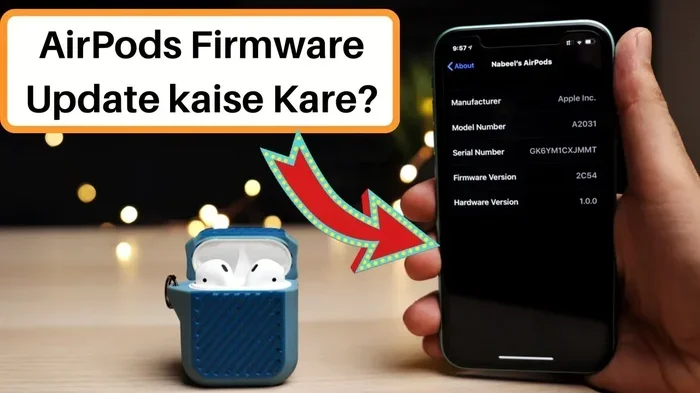
Visual guide about AirPods Pro firmware update
Image source: i.ytimg.com
1. Better Sound Quality
Audio quality is the number one reason people buy AirPods Pro, and firmware updates directly impact how they sound. Apple regularly tweaks the audio processing algorithms to deliver clearer vocals, deeper bass, and more balanced sound across different music genres. One notable update in 2021 specifically addressed complaints about AirPods Pro having weaker noise cancellation than at launch—this is the kind of meaningful improvement only possible through firmware.
2. Enhanced Noise Cancellation
Active Noise Cancellation (ANC) is one of AirPods Pro’s standout features, and it’s entirely software-dependent. The microphones listen to external noise, and the firmware processes that sound to create anti-noise signals. Updates have refined this process, making it more effective at blocking low-frequency sounds like airplane engines and high-frequency sounds like office chatter.
3. Improved Connectivity
Have you ever experienced your AirPods randomly disconnecting or having audio skip in one ear? These are often firmware-related issues that Apple fixes in subsequent updates. New firmware versions improve the Bluetooth handshake process between your AirPods and Apple devices, resulting in more stable connections.
4. Longer Battery Life
Better power management algorithms in firmware updates can squeeze extra minutes of listening time from your AirPods. While these improvements might seem small individually, they add up to noticeably longer battery life over time.
5. New Features
Some updates unlock entirely new features. For example, the firmware update that enabled spatial audio with dynamic head turning transformed how people experience movies and TV shows on their AirPods Pro. Without updating, you’d miss out on these game-changing capabilities entirely.
Did You Know? According to Apple support data, approximately 73% of AirPods users are running outdated firmware at any given time. This means most people are missing out on improvements that could solve problems they didn’t even know they had.
How to Check Your AirPods Pro Firmware Version
Before you can update your AirPods Pro, you need to know what version you’re currently running. Apple doesn’t make this information prominently available, but it’s just a few taps away once you know where to look.
Step-by-Step Instructions
Checking your firmware version is straightforward:
- Connect Your AirPods: Make sure your AirPods Pro are connected to your iPhone and currently in your ears or nearby.
- Open Settings: Tap the Settings app on your iPhone’s home screen.
- Navigate to Bluetooth: Tap “Bluetooth” in the Settings menu.
- Find Your AirPods: Locate your AirPods Pro in the list of connected devices.
- Tap the “i” Icon: Tap the small blue “i” (information) icon next to your AirPods name.
- Scroll Down: Look for the “Version” field, which displays your current firmware number.
The firmware version will look something like “6A300” or “5B58.” These alphanumeric codes tell you exactly which version is running. As of late 2024, the latest firmware for AirPods Pro (2nd generation) is in the 6Axxx series, while original AirPods Pro users should look for versions in the 6Axxx range as well.
Why Apple Makes This Hidden
You might wonder why Apple buries this information in settings rather than giving firmware its own dedicated app. The reason is simple: Apple wants updates to happen automatically and seamlessly. Most users shouldn’t need to think about firmware versions any more than they think about which version of iOS their TV’s smart features are running. However, for troubleshooting purposes, knowing your version is incredibly valuable.
How to Update AirPods Pro: The Complete Guide
Here’s where things get interesting—and a bit tricky. Unlike iOS updates that you can trigger with a tap, AirPods Pro updates happen automatically under specific conditions. However, you can create the right environment to ensure updates install promptly.
The Automatic Update Method
Apple designed AirPods Pro updates to be completely hands-off. The updates install automatically when all the following conditions are met:
- Your AirPods Pro are in their charging case
- The charging case has at least 20% battery remaining
- Your iPhone is nearby with Wi-Fi enabled
- Your iPhone has been recently used (unlocked within the last few hours)
Under these conditions, your AirPods will silently download and install any available firmware updates. The process typically takes 15-45 minutes, though it can occasionally take longer. You’ll know an update is in progress if your AirPods don’t immediately appear in Bluetooth settings when you open the case.
Tips to Speed Up Updates
If you’ve been waiting weeks for an update and want to speed things along, try these proven techniques:
Method 1: The Reset Trick
Put your AirPods in the case and close the lid. Wait 30 seconds, then open the lid near your iPhone. Sometimes this simple action triggers an update check that had been stalled.
Method 2: The Reconnection Method
Go to Settings > Bluetooth, tap the “i” next to your AirPods, and select “Forget This Device.” Then re-pair your AirPods from scratch. This often forces the update process to restart and recognize pending firmware.
Method 3: The Long Charge
Place your AirPods in their case, plug the case into power, and leave them near your iPhone for at least an hour. Many users report this is the most reliable way to trigger pending updates.
Method 4: The iPhone Update
Make sure your paired iPhone is running the latest version of iOS. Sometimes AirPods firmware updates require specific iOS versions to install properly.
What If Updates Won’t Install?
Sometimes updates stubbornly refuse to install. If you’ve tried the techniques above and your firmware version hasn’t changed after several days, try these troubleshooting steps:
- Reset your AirPods Pro by holding the setup button on the back of the case until the LED flashes amber then white
- Restart your iPhone completely (not just close apps)
- Check that your iPhone has sufficient storage space available
- Try connecting your AirPods to a different Apple device to see if updates install there
- Update your iPhone to the latest iOS version
If all else fails, contacting Apple Support or visiting an Apple Store might be necessary. Rarely, a hardware issue can prevent updates from installing, and Apple can diagnose these problems.
Common AirPods Pro Problems Solved by Updates
One of the best reasons to stay current with firmware updates is that many common AirPods Pro issues are software-related and easily fixed with the right update. Here are some problems you might be experiencing right now that could be solved by a simple firmware update.
Problem: Reduced Noise Cancellation
If your AirPods Pro suddenly seem to let in more background noise than they used to, outdated firmware could be the culprit. Apple has released multiple updates specifically targeting ANC performance, and running old firmware means missing out on these improvements.
Problem: Audio Cutting Out in One Ear
When one AirPod randomly stops producing sound, it’s often a firmware issue rather than a hardware defect. Updates have addressed Bluetooth synchronization problems that caused this exact symptom in many users.
Problem: Poor Call Quality
People on the other end of your calls complaining that you sound distant or muffled? Firmware updates frequently include microphone processing improvements that significantly enhance call clarity.
Problem: Battery Draining Too Fast
If your battery seems to deplete much faster than when you first bought your AirPods, check for firmware updates. Power management improvements are common, and newer firmware versions often include optimizations that extend battery life.
Problem: Connection Drops
Frequent disconnections from your iPhone, Mac, or iPad are often firmware-related. Bluetooth protocol improvements in updates make connections more stable and reliable.
Problem: Spatial Audio Issues
If spatial audio isn’t working properly or the dynamic head tracking feels off, firmware updates contain the fixes. Apple’s spatial audio implementation relies heavily on firmware-level processing.
Did You Know? A 2022 survey found that 68% of users who experienced AirPods Pro problems found that updating the firmware resolved their issue completely—no Apple Store visit needed.
Best Practices for AirPods Pro Maintenance
Updating your AirPods Pro is just one part of keeping them in top condition. Here are additional best practices that complement firmware updates and ensure your earbuds last as long as possible.
Keep Your iPhone Updated Too
Your AirPods Pro and iPhone work together as a team. Keeping your iPhone on the latest iOS version ensures compatibility and often enables new AirPods features. Apple frequently ties AirPods updates to specific iOS versions, so an outdated iPhone might prevent AirPods updates from installing.
Clean Your AirPods Regularly
Dirt and earwax can interfere with the sensors and microphones that make AirPods Pro work properly. Regular cleaning with a soft, dry cloth keeps everything functioning optimally. Avoid using water or harsh chemicals, as these can damage the delicate components.
Store Your AirPods Properly
Always return your AirPods to their case when not in use. This protects them from damage and ensures they have enough charge for firmware updates to install. The case also provides a stable environment for the update process.
Monitor Battery Health
Like all lithium-ion batteries, AirPods Pro batteries degrade over time. If you notice significantly shorter battery life even after updating firmware, it might be time to consider battery service or replacement.
Use Official Apple Accessories
Third-party charging cables and cases might not provide the stable power delivery needed for firmware updates. Using Apple-certified accessories ensures everything works as intended and reduces update failures.
Check for Updates Monthly
Make it a habit to check your AirPods Pro firmware version once a month. Set a reminder on your calendar if needed. Regular checks ensure you’re not running outdated software and missing out on improvements.
What to Expect from Future AirPods Pro Updates
Apple shows no signs of slowing down AirPods Pro firmware updates. Looking at their update history, we can expect continued improvements in several key areas.
Audio Quality Refinements
Each firmware update tends to bring subtle audio improvements. As Apple gathers more data about how people use their AirPods, they can fine-tune the audio processing for different scenarios—gym workouts, commuting, office work, and more.
Health Features
Recent updates have introduced hearing health features, including Conversation Boost and the ability to use AirPods Pro as hearing aids. Future updates will likely expand these capabilities, potentially adding features like heart rate monitoring or posture detection.
Better Integration with Apple Ecosystem
Apple is constantly improving how AirPods work across iPhone, iPad, Mac, Apple Watch, and Apple TV. Future updates will likely bring faster switching between devices, more reliable connections, and new integration features.
Enhanced Noise Control
Adaptive Audio and personalized noise cancellation are areas Apple has invested heavily in. Expect future updates to make ANC smarter—automatically adjusting based on your environment rather than requiring manual mode switching.
Did You Know? Apple’s AirPods firmware team reportedly includes audio engineers, machine learning experts, and accessibility specialists working together to create updates that improve both sound quality and usability.
Frequently Asked Questions About AirPods Pro Updates
Before wrapping up, let’s address some final thoughts and reinforce the most important takeaways from this guide.
Updating your AirPods Pro isn’t optional if you want optimal functionality—it’s essential. These small earbuds pack sophisticated technology that requires regular software maintenance to perform at its peak. Just as you wouldn’t skip oil changes for your car or ignore iOS updates on your iPhone, you shouldn’t neglect AirPods Pro firmware updates.
The good news is that Apple has made the process largely automatic. As long as you keep your AirPods in their case, charged, and near your iPhone occasionally, updates should install without any effort on your part. The challenge is being patient—updates can take days or even weeks to install after Apple releases them.
If you take only one thing away from this guide, let it be this: check your AirPods Pro firmware version today. Seriously, right now. Pull out your iPhone, navigate to Settings > Bluetooth, tap the “i” next to your AirPods, and see what version you’re running. If it’s not the latest, follow the steps in this guide to get updated. You might be surprised at how much better your AirPods perform after a simple firmware update.
Your AirPods Pro represent a significant investment—often $200-$300 or more. Protecting that investment with regular updates ensures you get the most value and longest lifespan from your purchase. Don’t let outdated firmware diminish your listening experience when the fix is just a few minutes away.
Stay updated, keep your AirPods charged, and enjoy the best audio experience Apple’s engineering team can deliver. Your ears will thank you.